Dashboard Screen
- Appears by default on sign in/sign up to SpyderFlow app
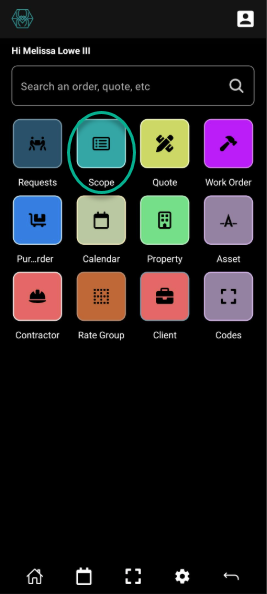
Mobile App –> Click Scope Icon —> Opens into List of Scopes by default
- Use ‘List of Scopes’ to Search, Filter and View scopes added by partial or full: numbers, keywords, etc.
- Select Scope from list to view, modify —> add items, details, attachments and notes.
- Status options include: Created, Allocated, data Entry Required, Review Required, Review & Approved, Paused and Cancelled.
New Features in Scopes
- Create New is replaced by the floating ‘+’
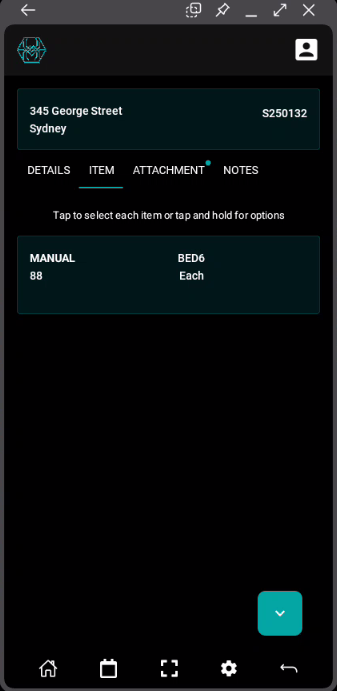
- Once scope details are added the user is redirected to new Data Screen to: Add Items, Details, Attachments and Notes
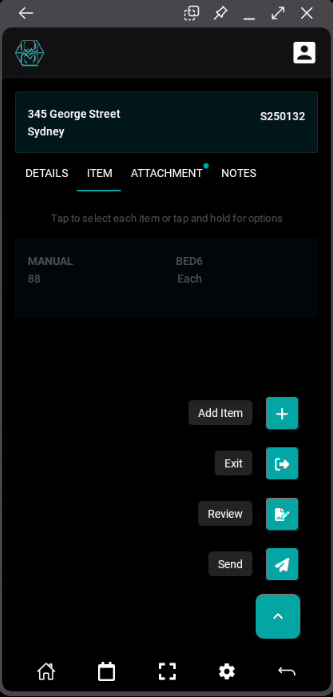
- When Click Items a new menu will open to:
- Add Item
- Award
- Exit
- Send
- Attachments can be added to the item or to the scope
- Attachments and Notes include options to select “View by External Client or Contractor?” as a check box to tick or leave unticked.
List Of Scopes
- SpyderTech logo left side of screen
- User Profile is top right side of screen
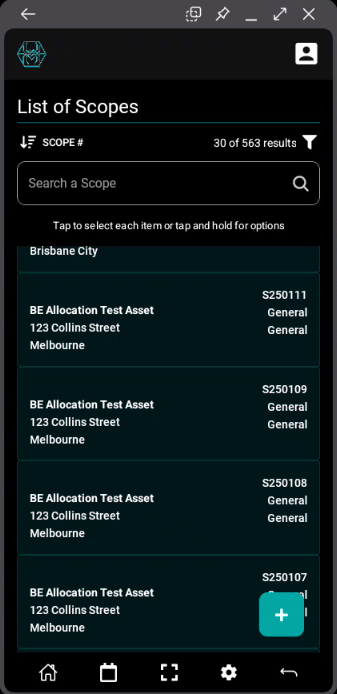
Listed Scopes are on the screen: Tap and Select items or Tap and Hold for Options.
Search, Sort and Filter quotes by keywords or partial alphabetical or numerical values
Sort By
- Address
- Due Date
- Scope #
- Suburb
Filter By
Status
- Allocated, Cancelled, Created
- Data Entry Required, Paused
- Review Required, Reviewed & Approved
Shortcut buttons along bottom of mobile screen to return home, go to Calendar, Scan code, Settings cog or return back a screen.
- Click ‘+’ to Add New Scope
Add New Scope
- Click Scope from home screen
- Located on List of Scopes is the ‘+’ Button. Click to add new scope.
- Click to fill details in fields as per business process. Scroll down through all and especially fill in Red Mandatory fields.
-
- Property or Asset- Start to type and this will give prefill options of available properties or assets
- Scheduled Start – Select from Calendar format (Date/Time)
- Due – Select from Calendar format (Date/Time)
- Contact Name – Add or Search Contact Name
- Contact Ph – Add or Search Contact Phone number
- Comments – Add if required
- Flags – Search available Flags for your organisation
- Company – Your Company the Quote is from.
- Client – Client the quote is for.
- Area – Where is the located area
- Category – Service category
- Scope Owner
- Scope Owner Ph
- Scoper
- Scoper Ph
- Inspector
- Inspector Ph
- Rate Group – Items Rate Group
-
- Once complete click Save and Next
- Scope is created successfully and a highlighted validation message should show along bottom of your screen
- Scope will be created and default to Data Screen to: Add Items, Details, Attachments and Notes
Add Item/s
Click to add Item, Location, Qty, UON, Keywords, Comments, Unit Sell $ (incl tax), Liability type and Liability %
-
- Save & Add – If want to add multiple items and stay in the add items area. Each Item added will appear at bottom and field above will clear to fill out again.
- Or
- Save & Done – If you want to add the item and be complete (done). Items will appear in list order on Data Screen that started as no items when quote first added.
Select Listed Items
- If select any of the listed items you can + Add Attachment
Add Attachment – Opens into overlay window to choose: Attachment type, Title, Attachment Status, Can be Viewed by External Users? (Client or Contractor) if set in your organisation
- Attachment list sits under +Add Attachment. Click arrow at right to then go into the + window
- Click + and Select: Take a New Photo, Choose a Photo, Choose a File.
- Save & Done when complete
Details
The details will flow through from when the Scope was added.
- Click on View in each section if want to edit and modify.
- If the Save button is greyed out at bottom then there are no details to save and details are up to date.
Attachments
- Search, Sort Filter Attachments
- Click to go into Attachment details
- Click floating [+] to add attachments
- Choose if “Can be Viewed by External Users?”
Notes
Click [+] to add notes
Opens into new window to add note by:
- Category
- Alert Type
- Comments
- Note Status
- Choose if “Can be Viewed by External Users?”
Save & Done when complete
Existing Scopes in ‘List of’ page
Select a Scope from List
- Scope opens by default to the Data Screen to: Add Items, Details, Attachments and Notes
- Review/Add: Scheduled Start, Contacts, Scoper and Clients to Details Tab.
- Review/Add Items to the Items tab.
- Attachments tab: Review/Add documents, images.
- Review/Add Alerts, General information to Notes tab
Remember to Select “Can be Viewed by External Users?” for attachments and notes if required. If this is not an option check with your System Administrator to configure in your system.
Click floating arrow to get options to: Add Item, Exit, review or Send