Create a New Contractor record with information, attachments (photos, licenses, certifications).
Sign in with Subscriber User Role that has access to creating Contractor records.
- System Administrator
- Finance
- Manager
Example user roles who may do this, depending on your business practice.
How to Create a New Contractor Record in Contacts
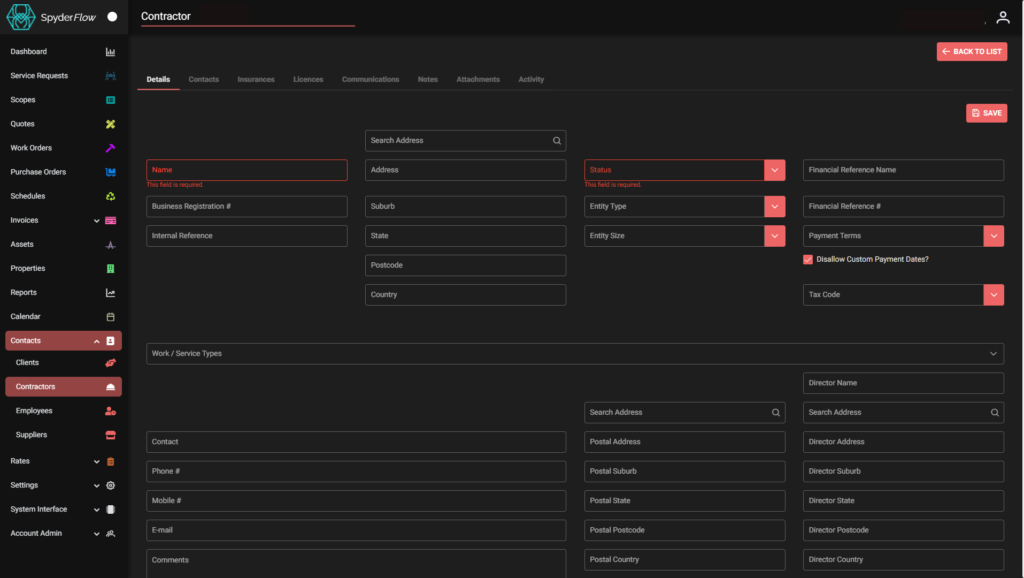
- Start filling out fields on default Details Tab first.
- Other tabs are not available until after details tab is complete and saved.
Process (How To)
- Navigate to: Main Menu > Contacts > Contractors > List of Contractors > +CREATE NEW
- Mandatory Fields are: Name and Status
- Fill in all fields as per your business process.
- Business Registration #
- Internal reference
- Address details
- Entity type
- Entity Size
- Financial Reference details: Name, Refernece #
- Payment Terms. These are set by your organisation in subscriber set up.
- Tax Code
- Work / Service Types
- Other Contact details
- Click Save (once complete)
Open and fill in Other Tabs as required:
- Contacts, Insurances, Licences, Communications, Notes, Attachments.
Activity tab is not a fill in area, it is a log of what changes occur within the contractor record.
- Open each tab and click +ADD, complete details for each tab area.
- Upload photos and files as required through upload buttons, dropdown categories.
- Type fields can in some sections can be filled in to give identity to files added and uploaded.
- Last tab: Activity will keep record of all activity in contractor record as you fill out, modify or delete.
Contacts
To add contacts click +ADD
Fill out fields for your contacts as required, starting with Name and Position (Mandatory)
- Select Dates Contact is active from and to
- Description of contact can be useful information for anyone looking up the contact
- Contact methods: Phone number, Email, Mobile.
- Language – choose from drop down
- Tick box if the contact is a Primary Contact
- Access detail text box to detail any further information.
- Save when complete or Cancel if no longer required to add information to this area.

Insurances
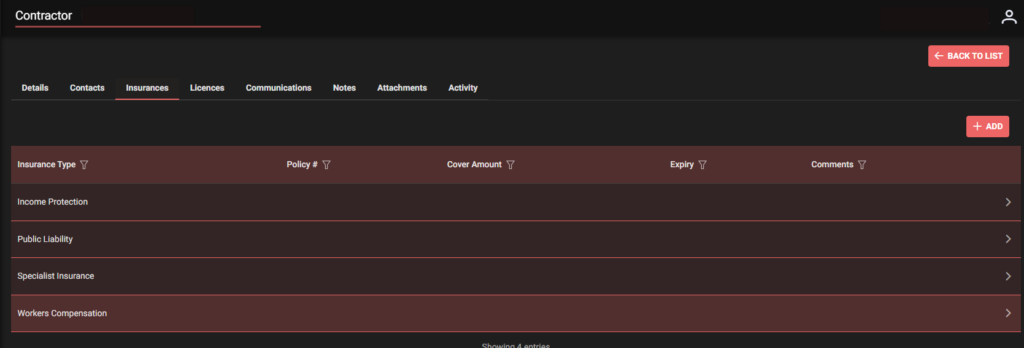
To add Insurances –> Click +ADD
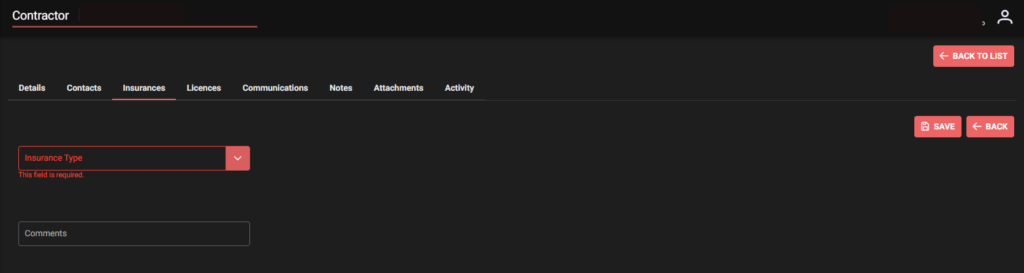
- Choose Insurance Type from drop down
- Add comments
- Save
- Go to Attachments Tab to upload any relevant files or photos.
Licences
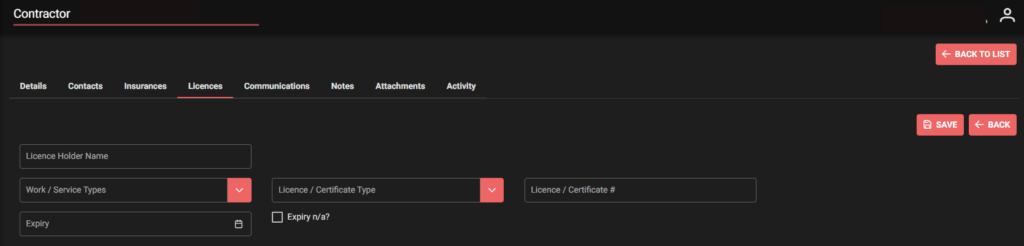
To add Licences – similar process to Insurances but select Licences Tab —> Click +ADD
- Fill out all required fields of Licence details
- Click Save
- Go to Attachments tab to Select and Upload files and/or photos.
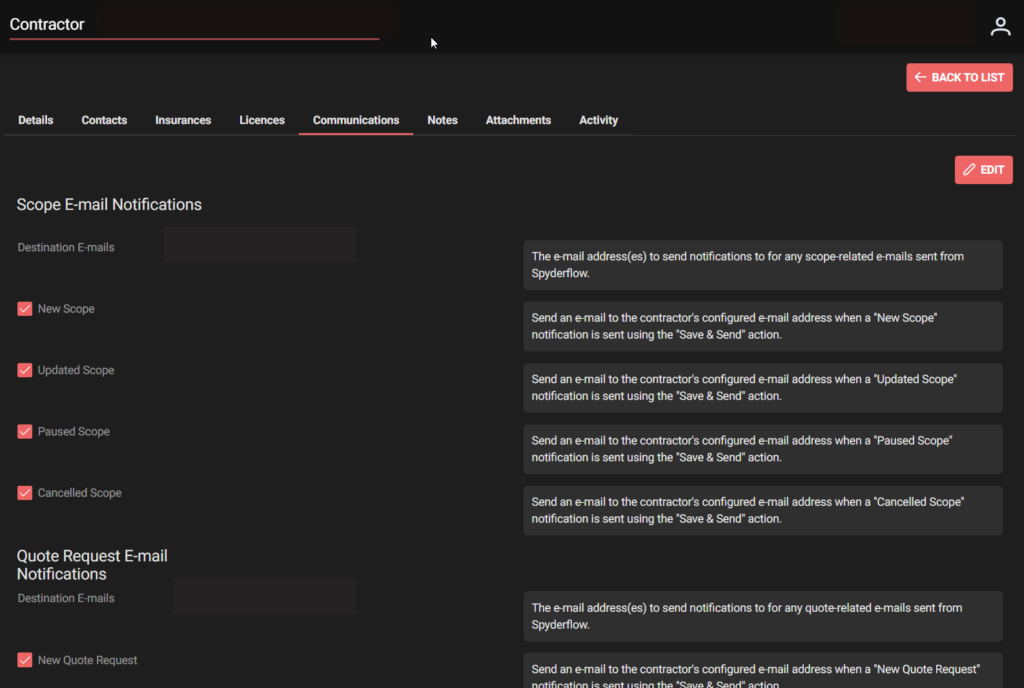
Communications
Communications Tab –> Email communications and notifications SpyderFlow to the Contractor
- Contractor email notifications can be set for workflow related areas sent from SpyderFlow to the contractor once details are entered into the system.
- Click Edit to set this area with destination emails, tick checkboxes for email notifications for Scopes, Quotes, Purchase Orders, Invoices.
Attachments
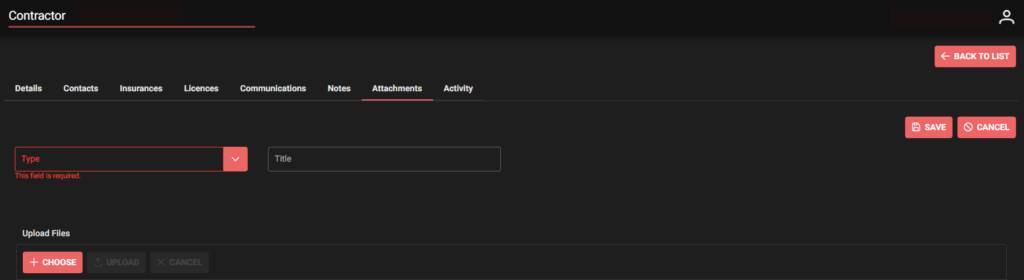
Attachments Tab –> Select Type of Attachment, Type Title, +Choose (Select your file) then Upload and Save.
Note!
Type of attachments are set up to the dropdown field by your SpyderFlow Administrator or Manager.
- If you cannot match the type with the attachment refer to your organisation Manager or Administrator for SpyderFlow.

Notes
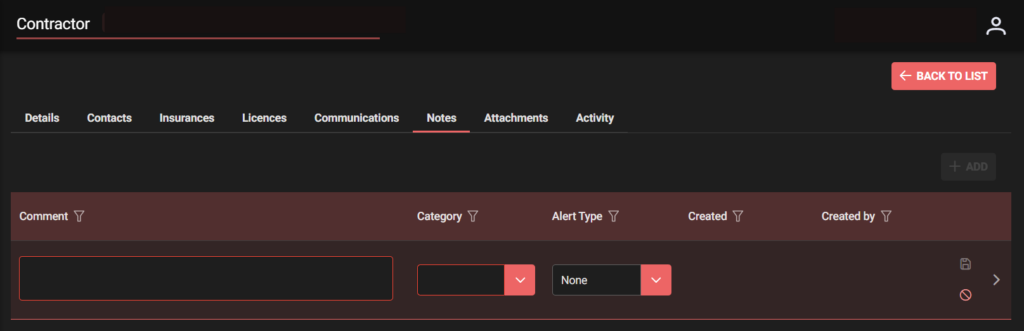
Notes Tab –> Click to add Notes to the Contractor record –> Click +ADD
- Comment and Category are mandatory
- Select optional alert
- (Comment is a type field, Category and Alert can be set as drop down fields)
Handy tip! – both drop down areas set by your organisation, contact your Manager or SpyderFlow Admin to add, modify, delete options).
Activity
The activity tab gives information to the contractor of system and user activity.
Useful if discrepancies arise or just if you are looking for when a change occurred with contractor details.
Can be filtered by columns:
- Reference type
- Reference
- Description
- Changed from
- Changed to
- Created
- Created by
When complete click another tab, menu item or <– Go back to List (List of Contractors)
