A property is a physical asset that SpyderFlow workflows are based upon.
- Each property record shows the users of the system the work history giving a comprehensive view of all activity undertaken against a particular property.
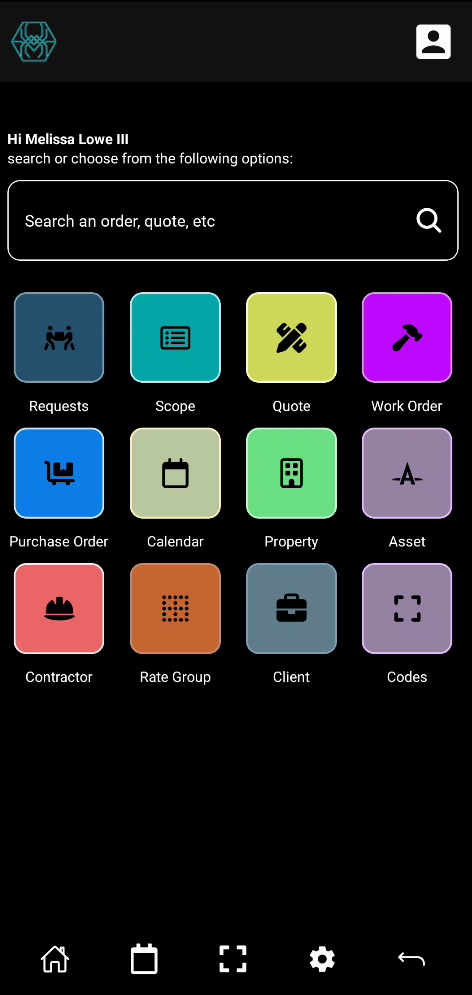
- The Property button is colour coded like other buttons to easily recognise and on the dashboard when sign into SpyderFlow.
- Default page when selected is List of Properties.

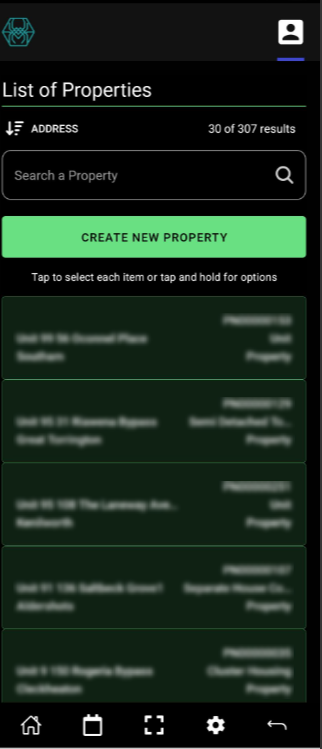
List of Properties
Opens into List of Properties
- SpyderTech logo left side of screen
- User Profile is top right side of screen
Listed Properties are on the screen: Tap and Select items or Tap and Hold for Options.
- List of Properties is displayed in order as chosen by Sort or Filter options.
- Or on opening into List of Properties the items are in last listed format.
Search, Sort and Filter properties by keywords or partial alphabetical or numerical values
Create New Property – Add new properties by clicking this button. Opens into Details window. Fill fields and Save as required.
Shortcut buttons along bottom of mobile screen to return home, go to Calendar, Scan code, Settings cog or return back a screen.
Select and View Properties
Select each property item from List of Properties (Tap to Select each item)
- Tap and hold for options: Select multiple properties and Delete
View details, add attachments, notes on each property item
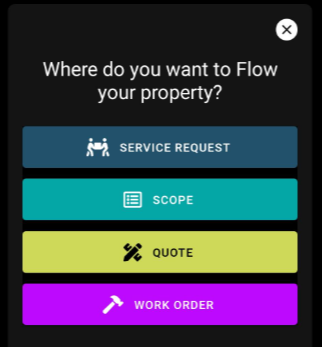
Flow to:
- Service Request
- Scope
- Quote
- Work Order
Save – for each section
Save & Exit to save and return to Dashboard
Property Mobile Details
Flow to
Save
Save & Exit

Flow your property