Prior Step – Custom Connection | Xero | Select Accounting Scopes
Send Authorisation Email
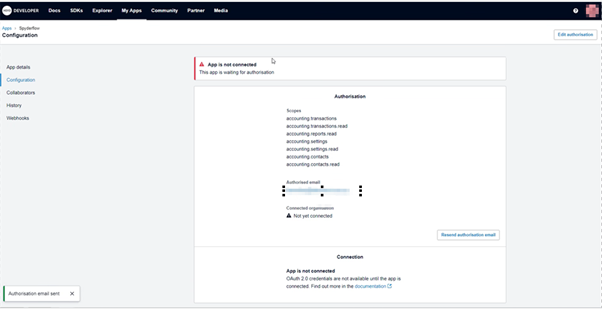
- Shows the accounting scopes chosen.
- Alert Message: App is not yet connected SpyderFlow.
- Check scopes are correct, check Authorised email.
- Click to Send Authorisation email and the verification of email sent will come up in left bottom corner.
- If do not receive email, go back to this window, and can resend authorisation email again.
Next: Xero Authorised User receives Email to approve connection (Xero to SpyderFlow)
See Link: Custom Connection | Xero | Accept Email
Useful Xero Link:
Xero Developer. Custom Connections. Accessed 17th June 2024 . URL link: https://developer.xero.com/documentation/guides/oauth2/custom-connections#purchasing-custom-connection-subscriptions