Suppliers in SpyderFlow
- Suppliers – Information is entered into SpyderFlow: this is to enable different Suppliers to be identified and referenced / incorporated into workflows as required in SpyderFlow.
- Location: SpyderFlow Main Menu –> Contacts –> Suppliers
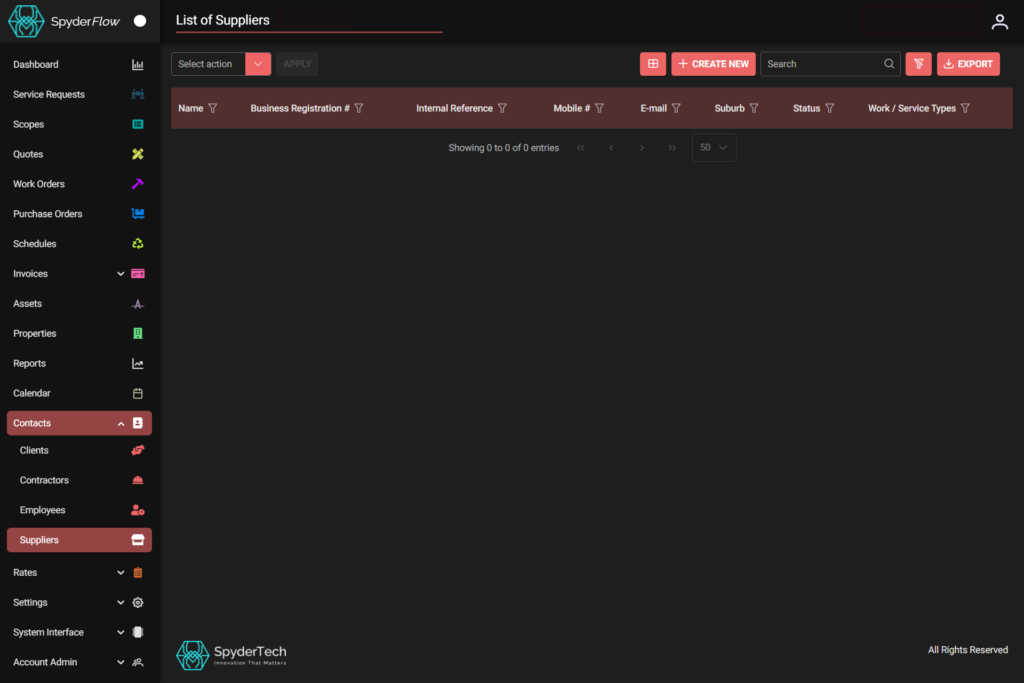
List of Suppliers
- The default opening page of Suppliers
- This has all listed Suppliers for your SpyderFlow.
List of Suppliers columns and data
- Can be filtered, searched, sorted and have rules added
- Can be customised for view and exports.
Select Actions
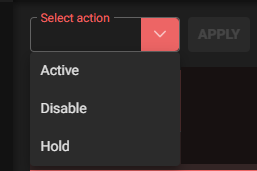
This is the ‘Bulk Action’ dropdown.
- Click to select, change multiple listed Suppliers to activate, disable or hold.
Select List Columns
- Click Select List Columns button
- Customise Columns on page (Add/Remove) – Tick or untick to select column choices.

+Create New
Create a New Supplier record with information and any relevant attachments.
Start filling out fields on default Details Tab first. Note! Other tabs are not available until after details tab is complete and saved.
- Default tab opens into Details –> Fill out all details (especially mandatory in red)
- Complete all other fields as required by your organisation.
- Click Save (once complete) for saving information details.
Once Details tab is Saved
- Move to each tab left to right to add or view: Contacts, Communications, Related, Notes, Attachments, Activity.
- Open each tab and click +ADD or EDIT then complete or view details for each tab area.
- Upload photos and files as required through upload buttons, dropdown categories.
- Type fields can in some sections can be filled in to give identity to files added and uploaded.
- Last tab: Activity will keep record of all activity in Supplier record as you fill out, modify or delete.

Contacts, Communications, Notes, Attachments, Activity

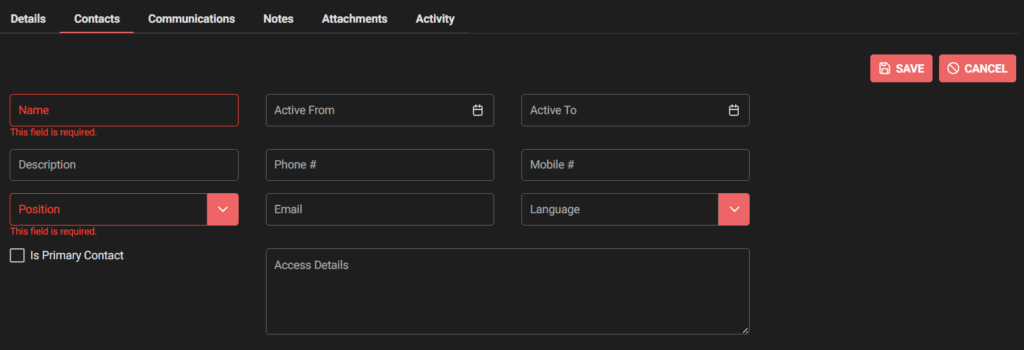
Contacts Tab –> Click to +ADD
Fill out fields for each Contact –> Save when complete or Cancel if incorrect.
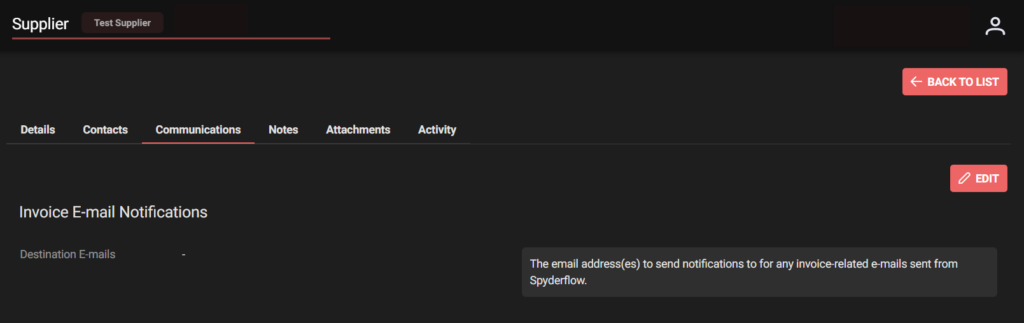
Communications Tab –> Click to EDIT
- The email address(es) to send notifications to for any invoice-related e-mails sent from SpyderFlow.
Notes Tab –> Click to +ADD notes –> Complete fields and Save

Attachments Tab – Click to +ADD

- Complete fields, choose files/photos and upload to Supplier
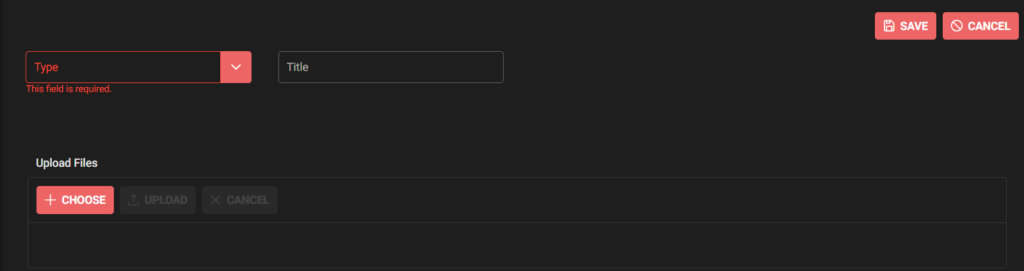
- Save when complete
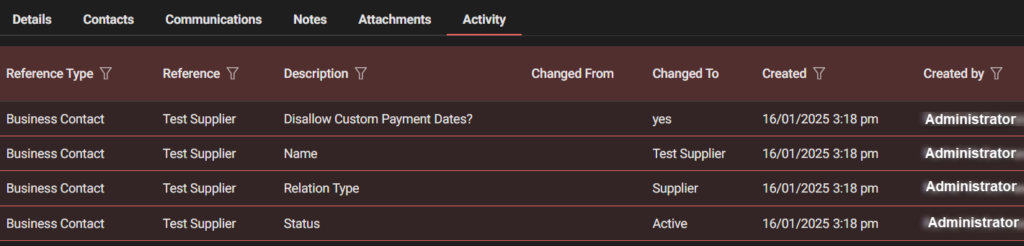
Activity Tab –> View activity of the Supplier by:
- Reference type
- Reference
- Description
- Change To and Change From (status)
- Created (date/time) and Created by (account name who did the activity) columns