Create New (Worker)
Can be created with User invitation.

OR
Create New Worker
Role Required – First Contractor Worker (Needs to be Created by Subscriber User)
-
-
- Subsequent Workers can be created by Contractor Admin Role
-
Located: Main Menu –> Contacts –> Contractor Workers –> List of Contractor Workers
- Click +CREATE NEW
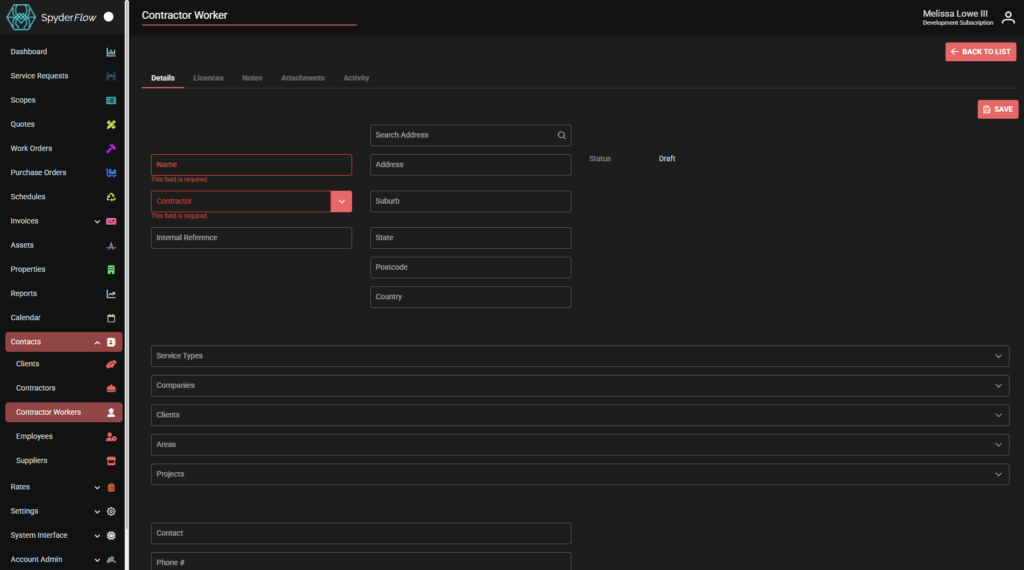
Default opens into Details Tab:
Fill in all fields, starting with the mandatory fields (red) of Name, Associated Contractor and Status.
- Name: Contractor Name
- Contractor: If the associated contractor does not show in dropdown go back to Contractor section and add, then complete worker. Note! Worker must have associated Contractor.
- Address: relevant worker address as by company business process
- Status – may be set up in Draft status if licences need to be added and then move to Review Required for Contractor to approve then flow to Active.
Filters –> see more information further down page.
- Service Types: filter to the service type. eg. Admin, Electrical, Plumbing
- Companies: filter to company
- Clients: filter to clients
- Areas: filter to areas
- Projects: filter to projects
- Contact: add if required contact name for worker
- Phone # : contact phone number
- Mobile # : contact mobile phone number
- Email: worker email address
- Comments: add any comments relevant to worker
- Click Save to complete details and move to other tabs (Contacts, Licences, Notes, Attachments, Activity).

Contractor workers will inherit information from the Contractor of what they can access.
- Service Types
- Companies
- Clients
- Areas
- Projects
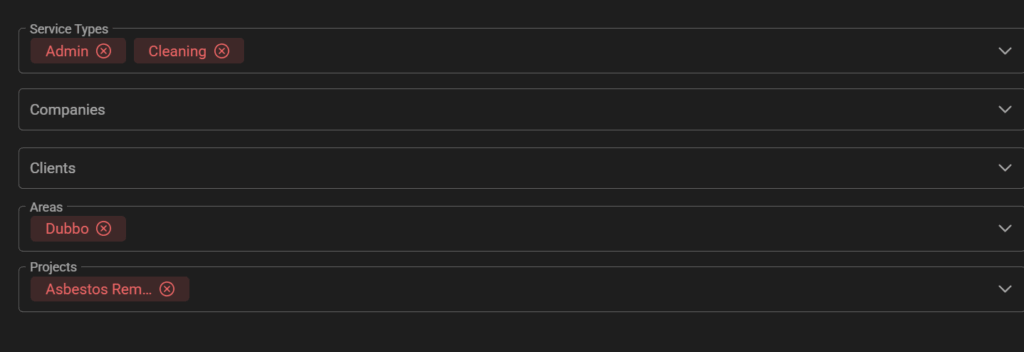
If no filters are chosen, then the worker can access in full the information available to the contractor.
But if filters are added their level of access is determined by what fits into the filter selections.
For example below: Can access Service Types: Admin, Cleaning in area of Dubbo relevant to projects of Asbestos Removal.
After Details Tab is Saved: Other fields then become active so add information as required to:
Contacts Tab
Click +ADD

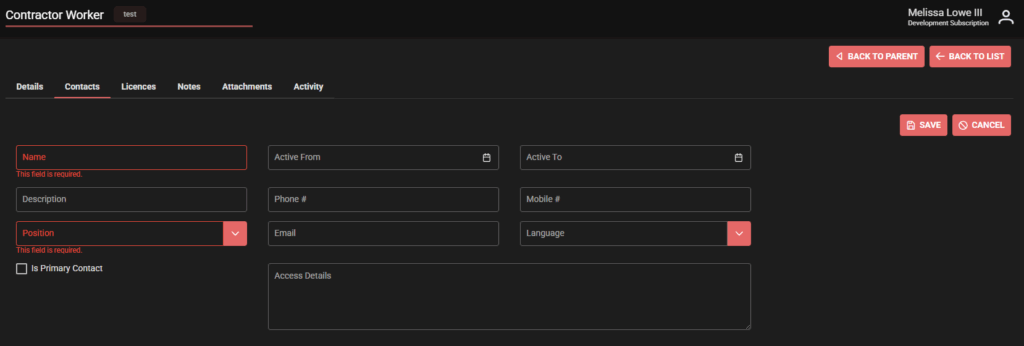
Fill in required fields in Red (Name and Position) then optional other fields.
- Name
- Description
- Position
- Checkbox – Is Primary Contact?
- Active from
- Active to
- Phone
- Mobile
- Language
- Access Details
Save when complete
Licences
Click +ADD for each licence. Can add multiple one by one of filling in fields, Save and repeat.
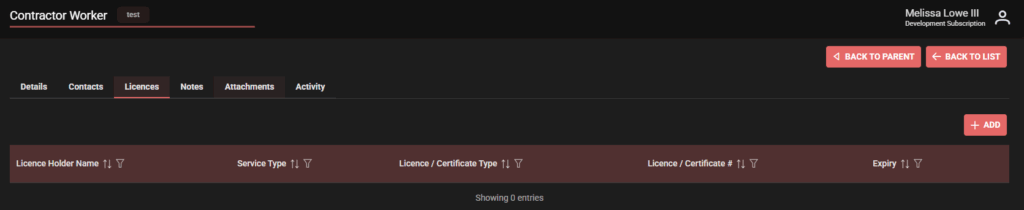
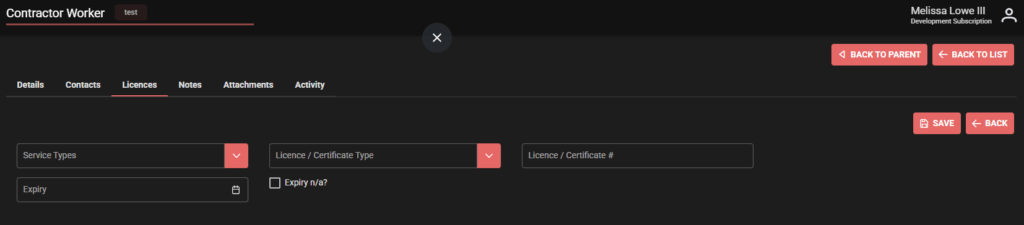
Add information as required:
- Service types
- Licence/Certificate type
- Licence/Certificate #
- Expiry
- Checkbox Expiry n/a?
Click Save when complete each licence
Or Click Back to return to licences list
Click +ADD to add multiple licences.
- Licence photos can be added in Attachments tab.
Notes
- Notes have a “Status” field, with possible options of
- Created
- Review Required
- Approved
- Notes created by internal user default to “Created” status though can be changed.
- Notes created by external user default to “Review Required”, though they can change it to “Created” if it is information only.
- External users are only able to create notes, they are not allowed to edit or delete.
- If there are any notes in “Review Required” then the notes tab will show an icon indicating there is something to review, and will show in the dashboard.
Add Notes
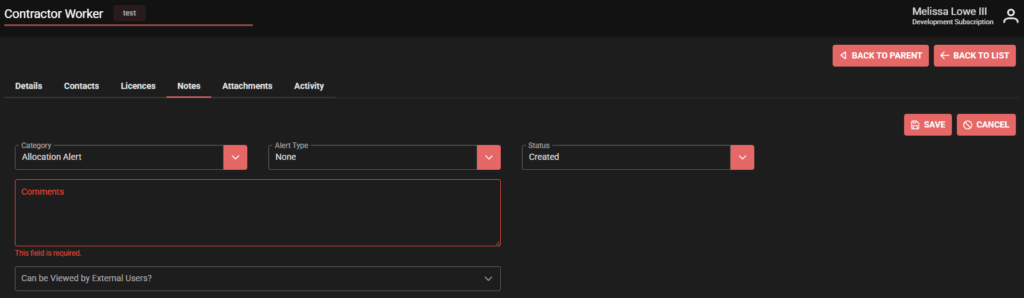
Click +ADD for any relevant worker notes. Can do multiple times: just repeat process.
Complete as required: Must fill in Category and Comments as a minimum.
- Category (red mandatory field)
- Alert Type
- Status
- Comments (red mandatory field)
- Can be viewed by External Users?
Save when complete.

Attachments
- Attachment have a “Status” field, with possible options of
- Created
- Review Required
- Approved
- Cancelled
- Attachments created by internal user default to “Created” status though can be changed.
- Attachments created by external user default to “Review Required”, and they cannot change it.
- External users are only able to create attachments, or add files to attachments in “Review Required”, they are not allowed to edit or delete.
- If there are any attachments in “Review Required” then the attachments tab will show an icon indicating there is something to review, and will show in the dashboard.
- This will show if there are any attachments displayed in the tab, whether it was added against the object directly, or if it was added against a child object and was showing in the list (eg WOs showing all PO attachments).
- For asset “related attachments”, it will not show the icon – this is meant for historical displaying, rather than management of attachments.
- Each attachment will display whether it is visible to the client/contractor, which initialises based off the attachment type but can be changed further if needed.
- This is only shown to internal users, not external users.
Add Attachment
Click +ADD for any relevant worker attachments. Can do multiple times: just repeat process.
- Type: What is attachment type? Mandatory red field
- Title: Name of Attachment if required
- Status: Created, Review Required, Approved, Cancelled
- Can be viewed by External Users? Options could be Clients or Contractors or Other set by your business process
- Upload Files: +Choose (select your file) then other options become available to: Upload or Cancel
Save when complete.


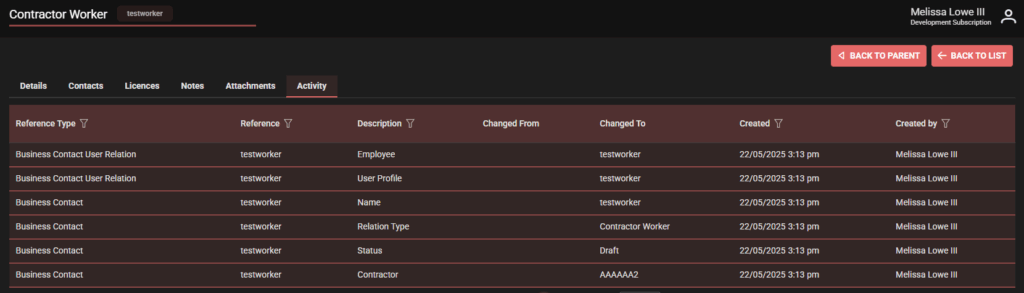
Activity
A history of activity: of the Contractor Worker record in SpyderFlow.
This can be filtered by:
- Reference type
- Reference
- Description
- Changed from
- Changed to
- Created (Date/Time)
- Created by (System or User name)