Plan markers in SpyderFlow can identify points of interest, assets, and associated areas to your properties.
Properties can have plans, diagrams, pictures attached with markers to view, edit, move or delete functionality.
- Upload Plan to Property
- Set Markers with details
- Hover over Marker for information
For further information see link: Properties | WEB | Plans
Add Plan Markers
Main menu –> Properties –> List of Properties –> Select a Property
- Plans Tab
- Select the plan, map, diagram you have uploaded to the property.
- Click Edit view
- Click location on plan to place marker
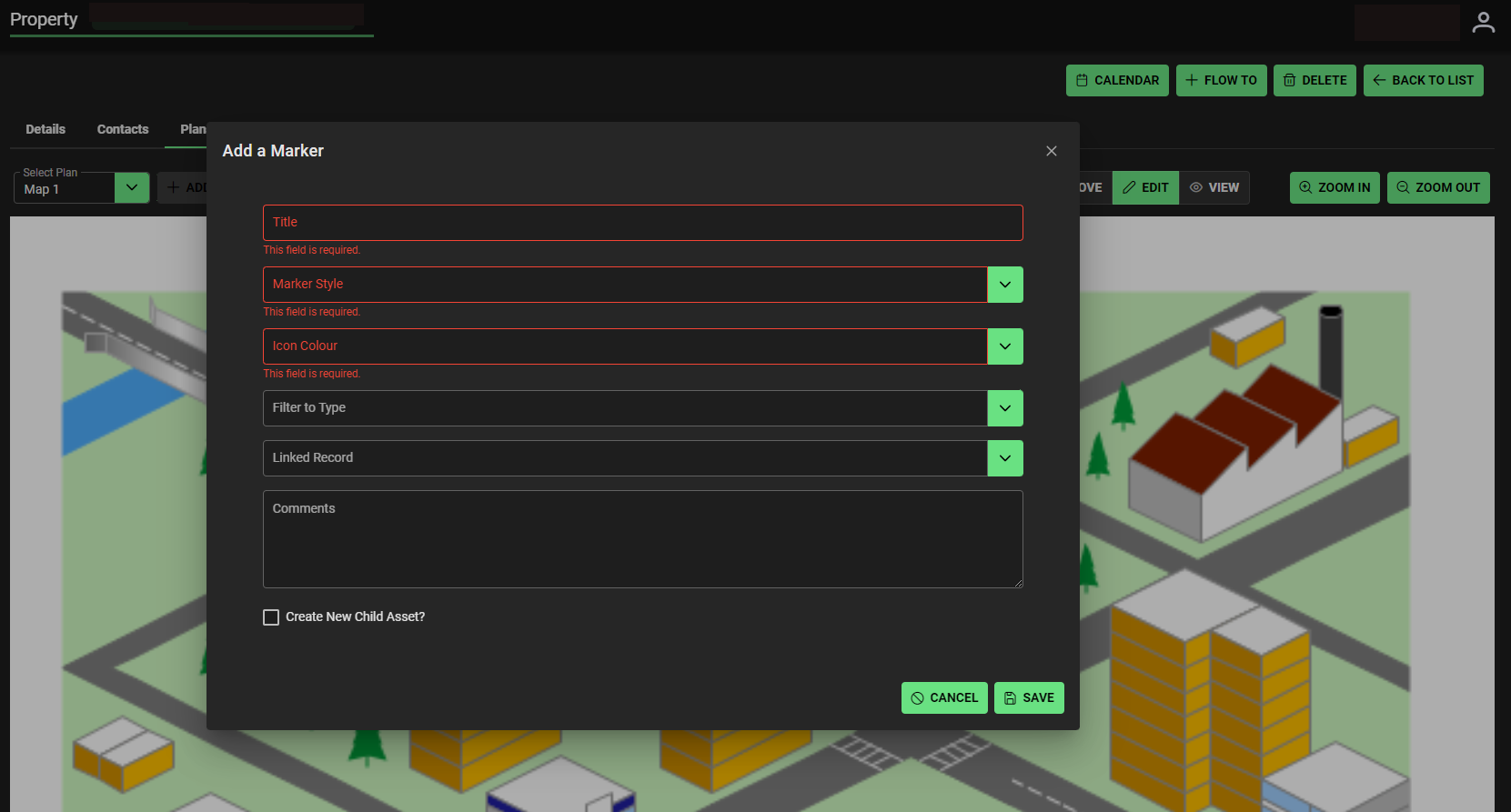
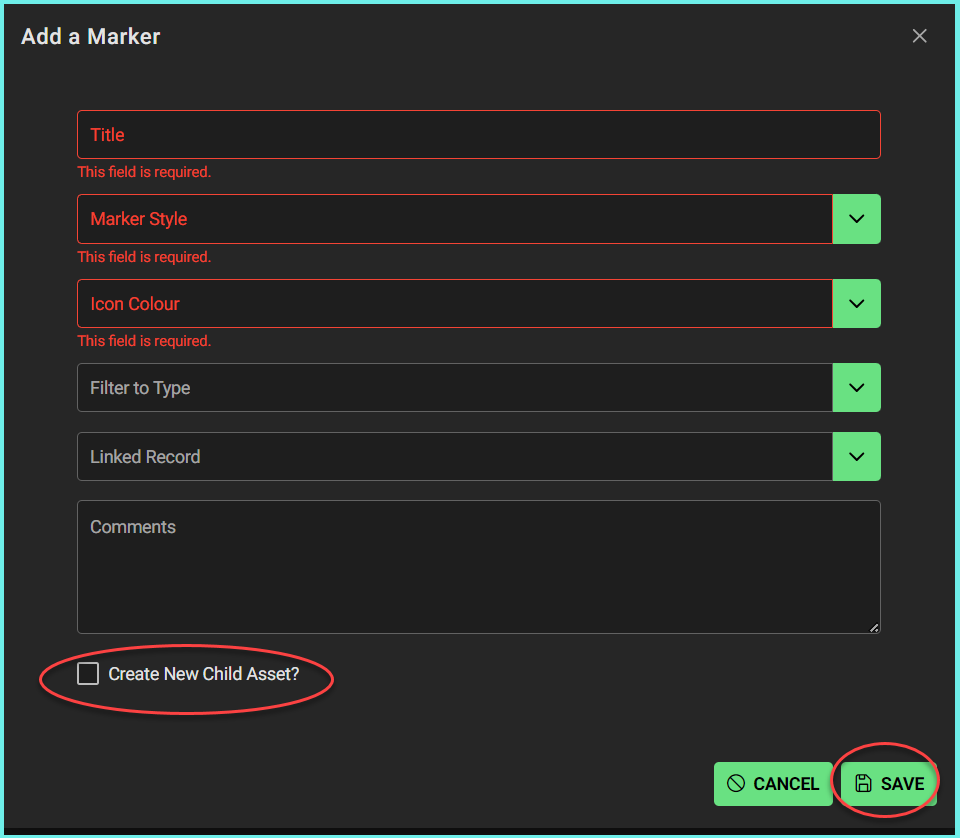
- Fill in details on ‘Add a Marker’ pop up window.
- If creation of Child Asset is required –> tick box ‘Create New Child Asset’. Otherwise leave unticked.
- Save when complete.
Move, Edit, View Markers
Once a marker is added you can move, edit or view. Multiple markers can be added and hover over can show information.
- Additional plans can be uploaded and markers added.
- View can be (+) Zoom in and (-) Zoom Out
- Markers can be deleted when no longer required.
FAQs: see link FAQs | Plan Markers | Assets and Properties