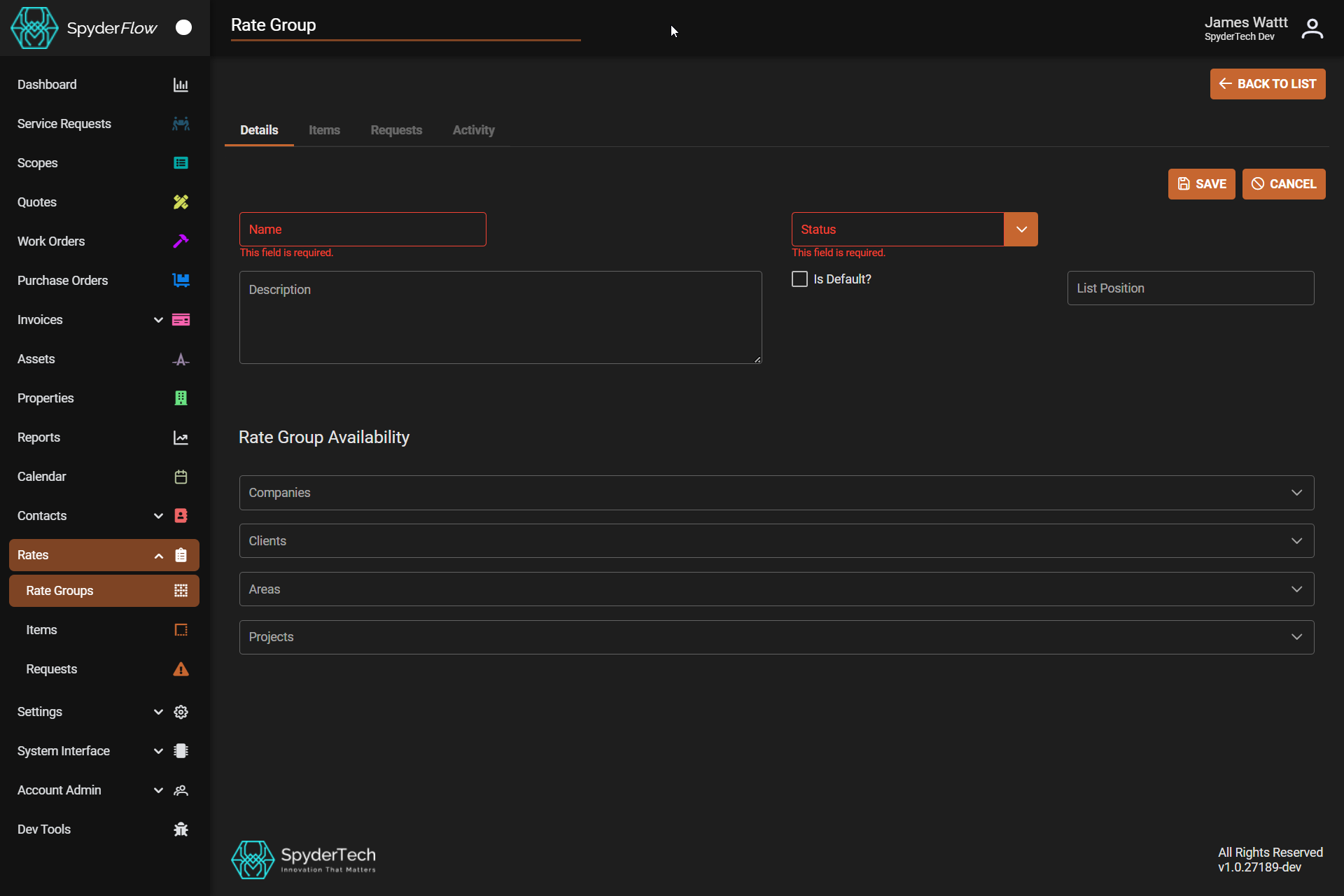
Location: Main Menu –> Rates –> Rate Groups –> List of Rate Groups –> +Create New –> fill Details page with information
Planning: Before creating your new rate group plan who the Rate Group will be for and what the availability of the Rate Group will be on Orders etc. Is the Rate Group a Employee only, Contractor only or for All Users. Once decided you can then set Items, Requests and Filter to Rate Group Availability in workflows.
+Create New
To create a new Rate Group you begin at the Details tab and fill out mandatory and optional fields as required per your company process.
- After the Details Tab is complete then Click Save.
- Other Tabs can then be filled out; Pricing and Requests as you need to by go to each tab and clicking ‘ADD’.
1. Details Tab
The details tab is the default page for filling out information for create new rate group. Fill out fields in +Create New:
- Name and Status are Mandatory to fill out.
- You cannot move forward to Save if these fields are not complete.
Description of fields :
Name – This field is required
- Name your rate group according to what it will be used for. For example you may have different states with Rates for pricing of work. Your rate groups could be named “Your Company NSW or Your Company Qld” etc.
Status – This field is required
- Active, Disabled, Retired.
- Is this a Rate group to be used currently or are you disabling or retiring the rate group.
Is Default?
- Checkbox to make the Rate group default
List position
- To show the Rate Group when listed in workflow selections.
- + or – numerical order to list the position the Rate Group is shown.
Rate Group Availability
- Select where your would like to make your Rate Group available per Companies, Clients, Areas, Projects.
- This is optional and if none are selected your newly created Rate Group will go into default and not be filtered per the availability criteria.
- Configure your rate groups per Company, Client, Area or Project. See also Rates | WEB | Rate Groups and Availability
Don’t Forget……
- Click Save when complete the Details fields.
Next: Move to other tabs and +ADD Items and Requests.