An Introduction
Field Groups: Subscribers can now control which values appear in drop-down fields based on the context of the record. Using Field Groups, assign field values to specific companies, clients, areas, or categories users will only see relevant options when creating or editing records. This reduces clutter, speeds up data entry, and prevents invalid selections. All existing field values have been placed in a default group so there’s no disruption to your current setup
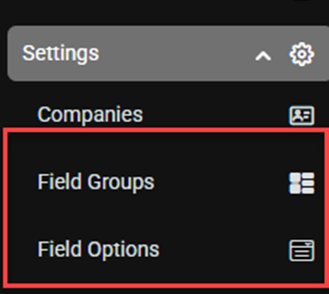
Located: Main Menu > Settings > Field Groups
Field Options: The options for Field ‘Drop Down’ areas throughout SpyderFlow.
A field option is the selection you choose when click a drop down field.
Role Required: System Administrator or Manager to configure
- Your System Administrator or Manager may configure the Field Groups and Field Options to be available in “Drop Down” field areas in your SpyderFlow.
Location:
-
- Main Menu > Settings > Field Groups
- Main Menu > Settings > Field Options
Create a New Field Group
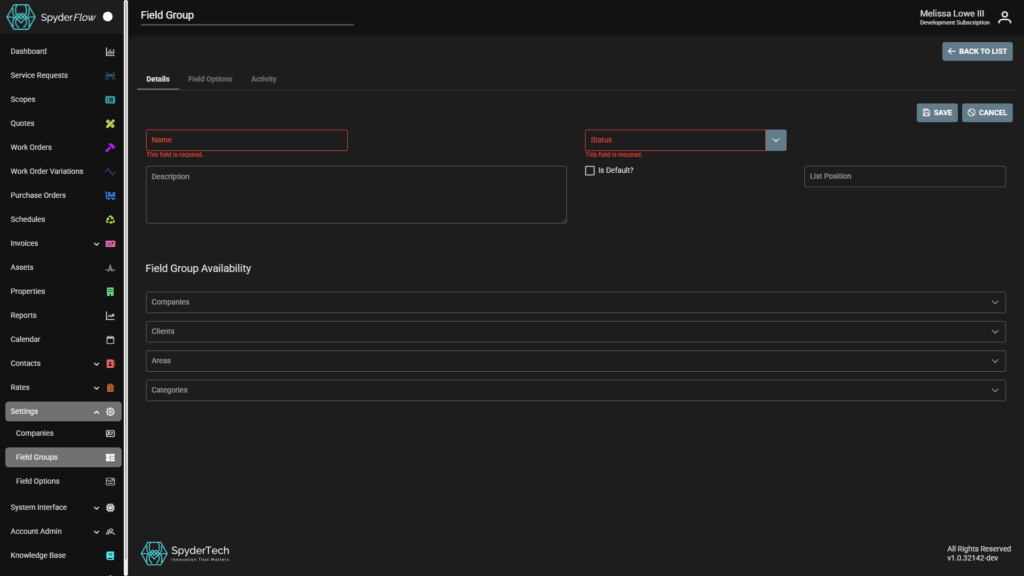
- Main Menu > Settings > Field Groups > List of Field Groups > +Create New
- Fill in Field Group details tab.
- Once details tab is complete click Save.
- Other tabs will then become active (Field Options and Activity)
Field Group Details
A new field group details at minimum are: Name and Status.
Mandatory highlighted in Red as “This field is required”
- Name: Type the Name of field group
- Status: Choose Active to use or Disable if do not want to use right away.
Optional fields:
- Description: What the field group contains
- Tick box for Is Default?
- List Position: Position is how the options are presented in the drop down.
Field Group availability: A field group may contain the availability for where the field option is shown through SpyderFlow subscriber.
- Companies
- Clients
- Areas
- Categories
Field Group Options
Field Group Options can be accessed either through the Field Group or on the Main Menu
- Add a new field option directly from the Main Menu > Field Options
- Add a new field option through the Field Group by selecting the Field Options tab
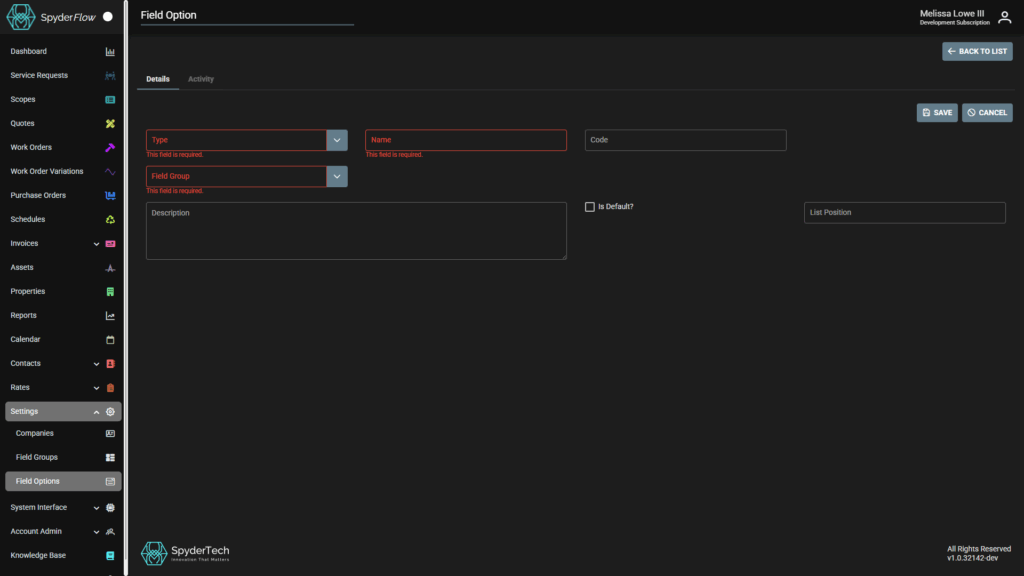
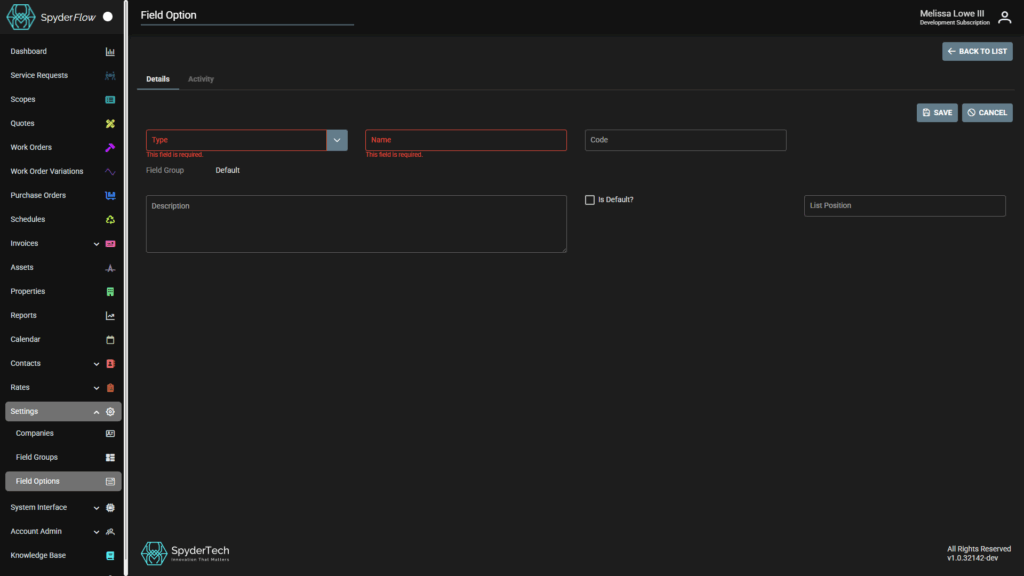
Main Menu > Settings > Field Options
Mandatory to choose/type the field details for: Type, Name, Field Group.
Optional is: Code, Description, Is Default? List Position
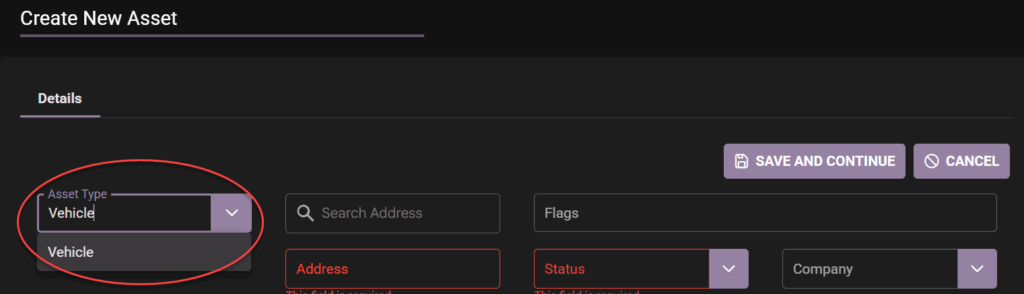
- Type: The type of field. This can be for example Asset Type.
- This is then the list of field options you want to display when you are filling out asset details and click on the “Type” field dropdown.
- Name: Name of the field option
- Field Group: Select the Field Group you want this Field Option to be available to.
- Code: Field Option Code that may be relevant
- Description: A description of what this field option is.
- Is Default? Tick to show Field option as default
- List Position: The order in which the drop down field options are displayed.
- Save when complete
Note: Any of the options on the ‘Type’ dropdown can be managed to ‘Field Group Availability’ of Companies, Clients, Areas, Categories except ‘Tax Code’. Tax code although can be chosen is System wide.
Main Menu > Settings > Field Groups > List of Field Groups > Select the Field Group > Field Options tab
Similar to above when filling out the details.
- Mandatory are Type and Name of field option.
- Field Option is already part of the Field Group though so this is prefilled. (Field Option is tab inside Field Group)
- Optional are: Code, Description, Is Default?, List Position.
- Save when complete
Change Field Option to another Field Group
If you need to change the Field Group for the Field Option.
- Cannot go into the Field Option and Edit the group it is in.
- This will not work
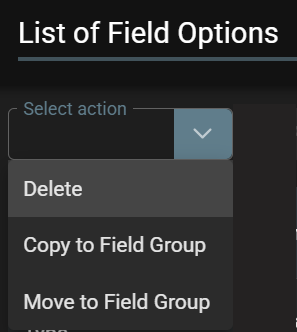
However, you can use the Select Option to Copy or Move to another Field Group.
Go to: Main Menu > Settings > Field Options > List of Field Options > Select Action
- Select Copy – Copy to Field Group. This action will take an exact copy.
- Select Move – Move to Target Field group. This action deletes the old one and creates a new one
Important!
- A field option once linked to a field group cannot be changed to another field group unless through a Select Action (Move or Copy). Clicking Edit in the field Option will not work.
- If the field option needs to change field group the recommended process is to delete the field group option and re add with new field group.