Fields Options in SpyderFlow are used in drop down or default areas of text in SpyderFlow.
On first set up with SpyderFlow:
- You may find fields that require set up for drop downs to display field options. See example 1 at bottom of this page.
- If the field is in Assets – then you will need to create an Asset type field. If in Properties – A Properties Type field and so on.
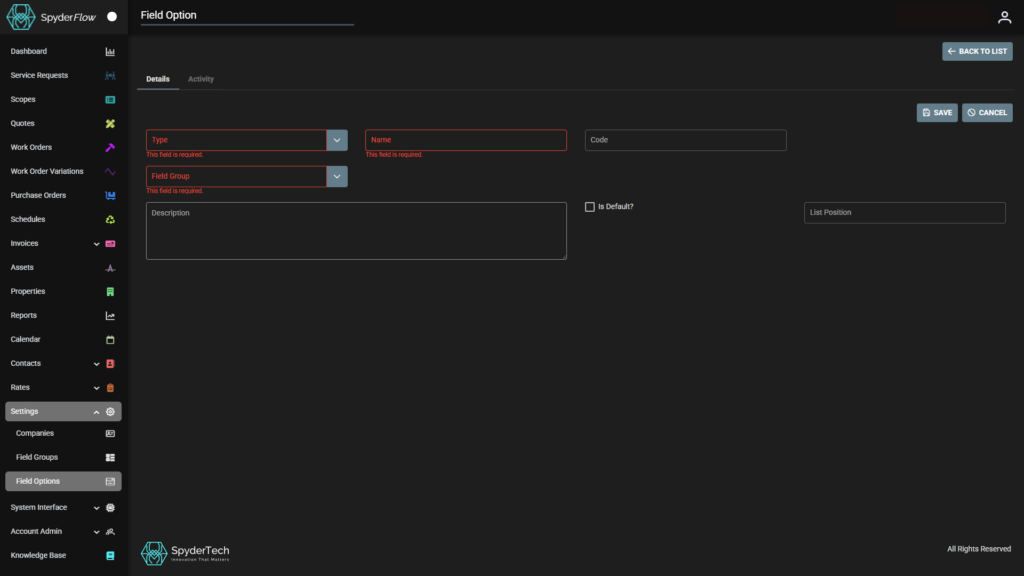
- Go to Main Menu > Settings > Field Groups > Select which Field Group you would like the Field Option to be in. Select Field Options Tab to +ADD a new field option for a drop down inside a pre existing field group. Choose Type (location and what type of dropdown), Name, Code, Description, Tick if the option is to be default on the drop down, List Position (where on the drop down list field option is).
- Or Main Menu > Settings > Field Options > +Create New will also take you to the +ADD field Option create but the difference is then you choose which Field Group the option is to be available for.
Also:
- Fields can be added by bulk upload when setting up your SpyderFlow subscription. This can be discussed when onboarding to SpyderFlow.
For your own field additions:
- Singular fields can be created by Subscriber Manager Role staff members (Managers, SpyderFlow Administrator).
- Before adding new field options check your default field options. There may already be a field option you can utilise.
- If choosing to create New Field Option check where do you want to see this field to choose the correct type of field in Create New details.

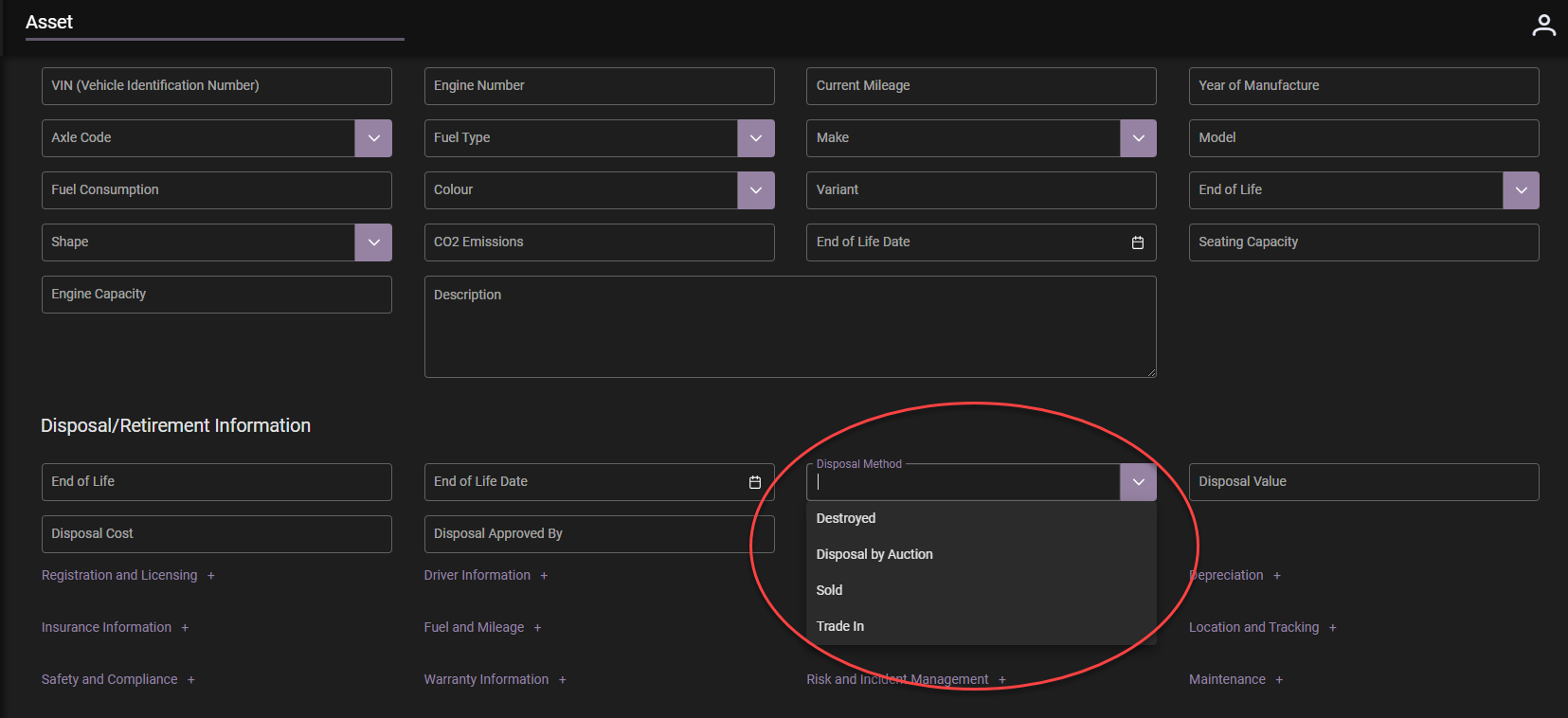
Example 1: ‘Asset Disposal’ Field Option Location
Below see ‘Sold’ is added to the drop down for Asset Disposal Field Option.
Adding Field Options
- Main Menu > Settings > Field Groups > Select which Field Group you would like the Field Option to be in. Select Field Options Tab to +ADD
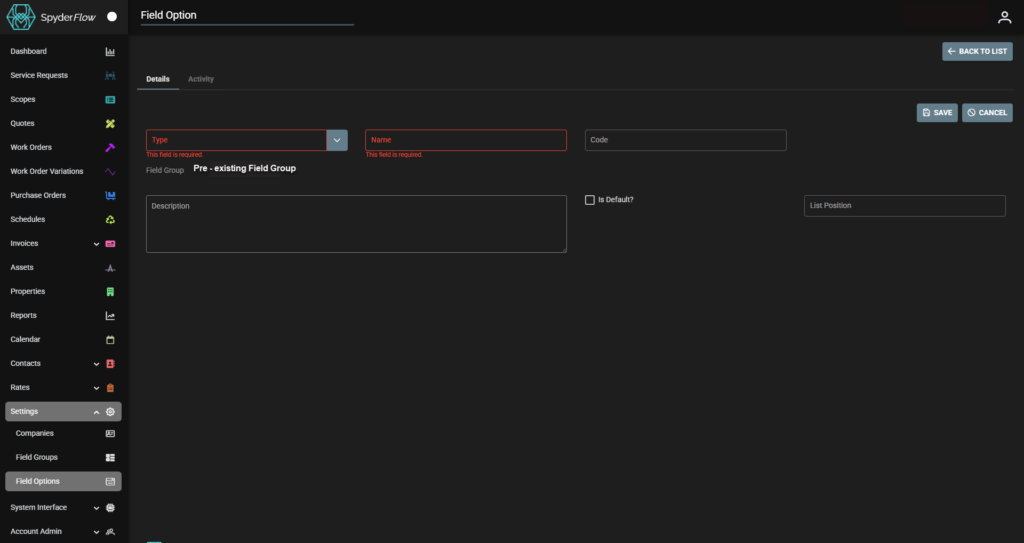
- Main Menu > Settings > Field Options > +Create New