Task: To edit or modify details, roles and permissions for users.
Required: SpyderFlow Administrator or Manager (Manager Role Permissions)
Note: User roles and permissions are advised to begin with lower role/permissions and work up if required to edit /modify access to SpyderFlow system.
Check User Roles and Permissions at:
- SpyderFlow Main Menu –> Account Admin –> User Roles (for Subscriber Roles)
- SpyderFlow Main Menu –> Account Admin –> External Users (External Roles)
Edit | Subscriber User
Location: Main Menu ->Account Admin – Users – List of Users Landing Page
- Select User Account and Click Edit –> Opens into Details tab
- Username – cannot edit. This is created when user is invited.
- Employee field is also non editable.
- Can edit all other fields (type or drop down): Display name, Status, User Role, Phone #, Mobile #, Email
- MFA mobile # can be added if user would like to receive MFA verification through phone call or text options. Default MFA is by Email on invitation/sign up of User.
- Click Save to Complete.

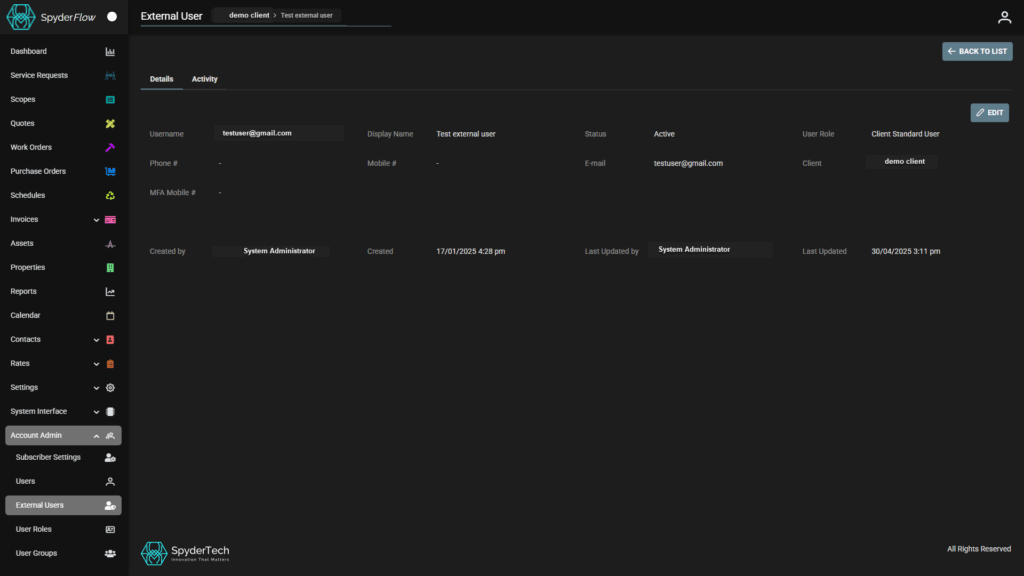
Edit | External User
Location: Main Menu -> Account Admin – External Users – List of External Users Landing Page
- Select User Account and Click Edit –> Opens into Details tab
- Username – cannot edit. This is created when user is invited.
- Employee field is also non editable.
- Can edit all other fields (type or drop down): Display name, Status, User Role, Phone #, Mobile #, Email, Client.
- MFA mobile # can be added if user would like to receive MFA verification through phone call or text options. Default MFA is by Email on invitation/sign up of User.
- Click Save to Complete.
Related links
Multi-Factor Authentication MFA | System Admin | Add MFA Phone Option to Users