Overview
Work Order Variations, give Subscribers greater control over how changes are made to work orders.
- When enabled for a work order priority, users can no longer edit items directly—instead, they submit a variation request that moves through an approval workflow.
- Permissions ensure the right people can create, review, or approve variations, providing a structured, auditable approach to managing changes.
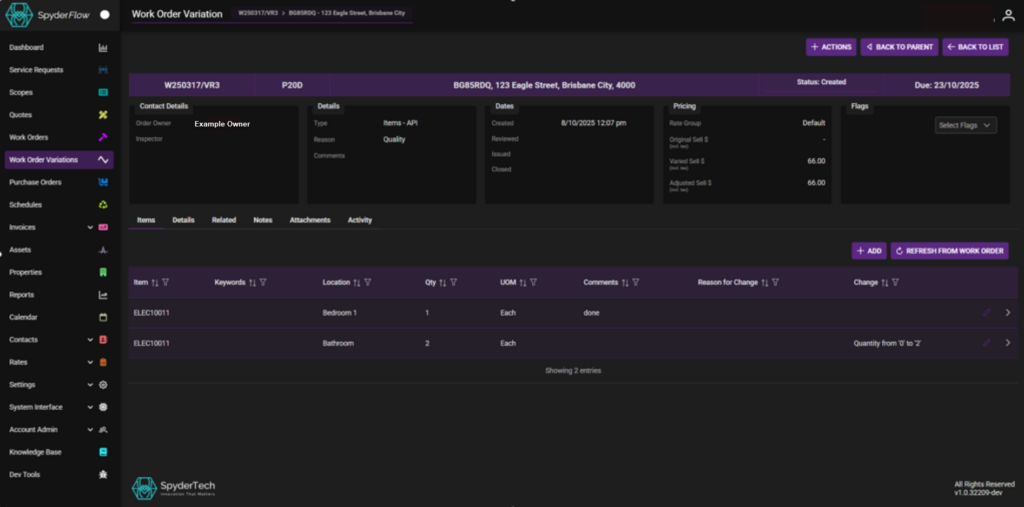
Example Process to Create a Work Order Variation
Note: Work Orders can be in different status like Created or Allocated prior to adding Variation.
- Open the Work Order > Variations Tab
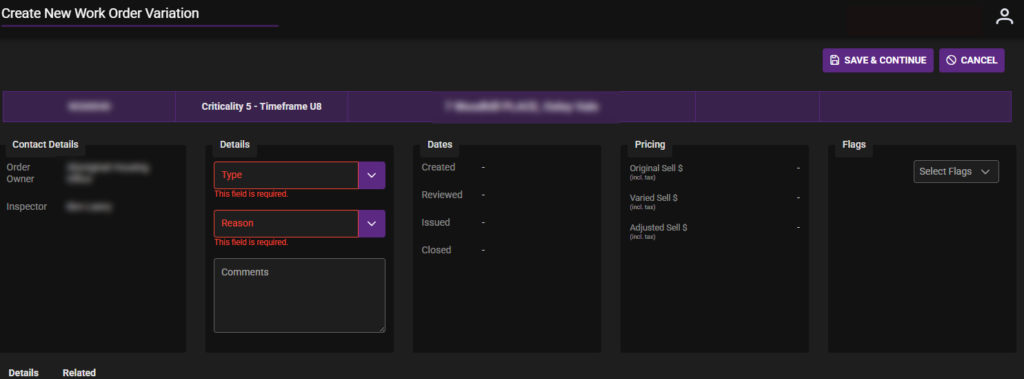
- Click +ADD and Create Work Order Variation-> Type for example could be: “Under Limit Items” Reason: “Responsive: Initial Item Update”. Save & Continue
- Add items to Work Order Variation
- (Top Right) – Click +ACTIONS > Select Finalise Creation
- Status is now Review Required
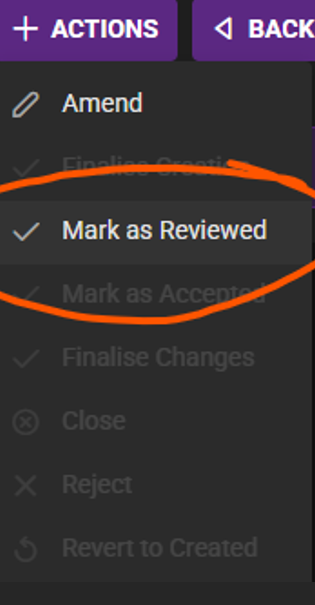
- Click +ACTIONS > Select Mark as Reviewed
- Status: Closed – This will update the Work Order Variation status to closed & add the items to the Work Order.
- To complete on the Work Order:, Edit item to assign to trades
See screenshots below of steps
Cannot +ADD direct to Work Order so click Variations Tab
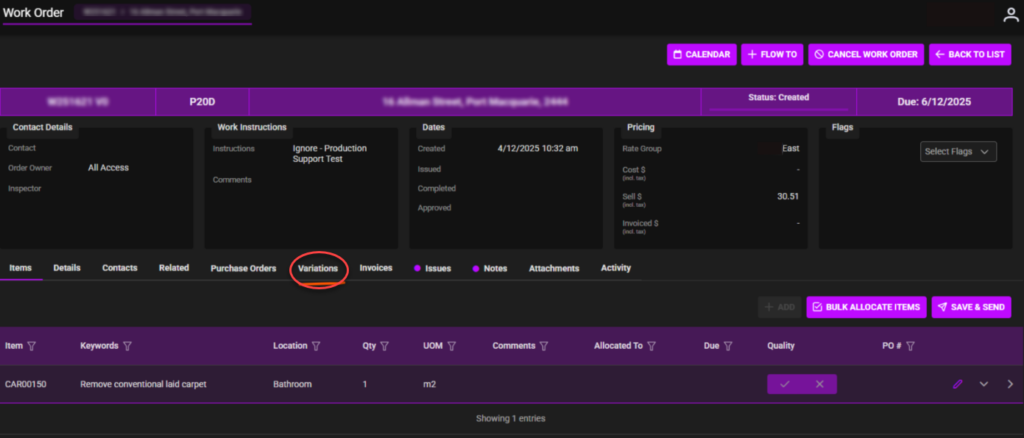
Variations Tab > Click +ADD

Fill in page Create New Work Order Variation with Type and Reason (from Dropdowns). Then Click Save & Continue
Click +ACTIONS and Select “Finalise Creation”
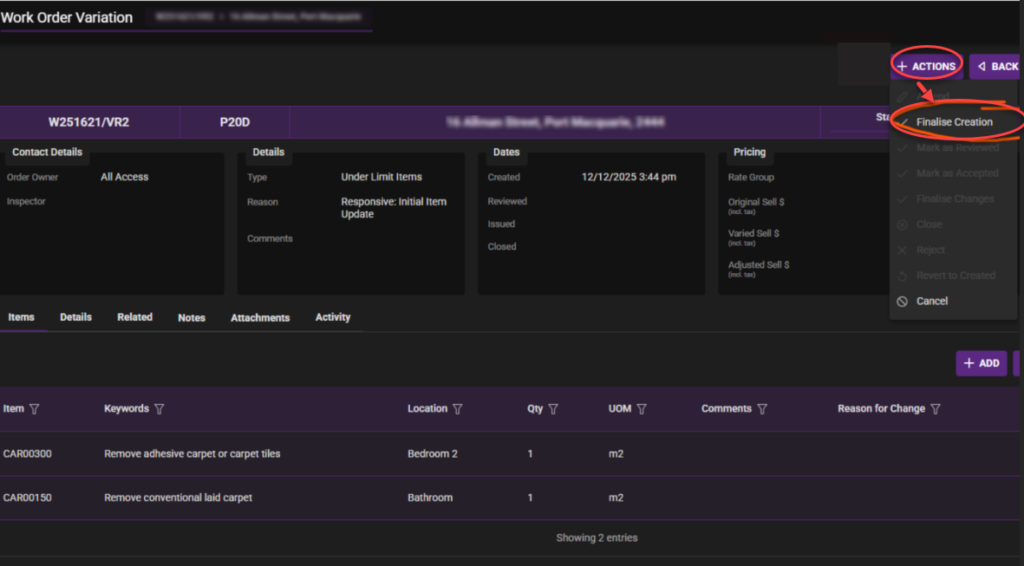
Status is now Review Required

Click +ACTIONS and Select “Mark as Reviewed”
Status is now closed on Work Order Variation and Items are added to Work Order

Last Step: Return to Work Order edit item and allocate to sub contractor as normal
Extra Note!
If changes are required always try to make notes on Work Orders and Variations as per Business requirements and process.