Previous step – Custom Connection | Xero | Accept Email
Client ID and Generate the Secret key
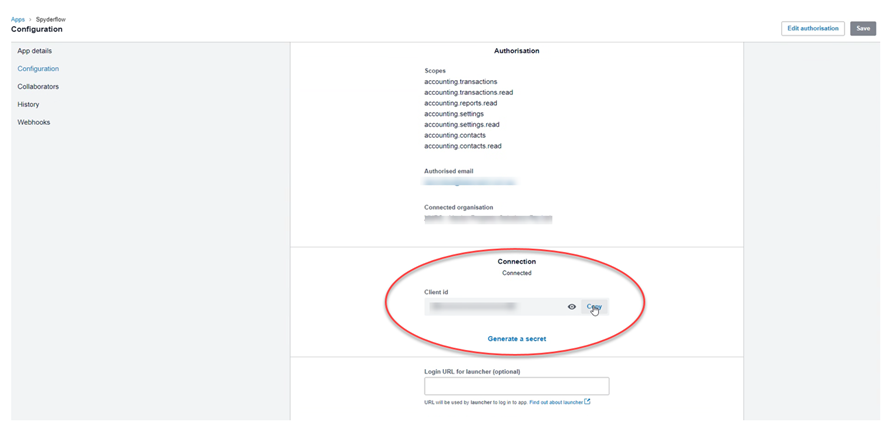
Xero Admin or Authorised user logs in and goes to the Xero Configuration page: (Apps –-> SpyderFlow –-> Configuration)
- Scroll down page past accounting scopes to Connection –> Client ID.
- Copy the Client ID.
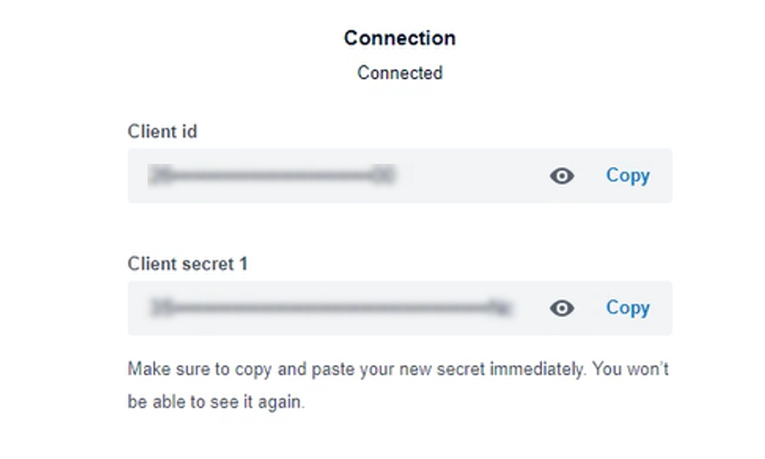
- Next –> Click on “Generate a Secret”.
Keep a copy of both the Client ID and Client Secret.
SpyderFlow will need both Client ID and Client Secret to connect to Xero.
Xero Administrator pass these details to SpyderFlow Administrator.
Next –> Pass Client ID and Client Secret to SpyderFlow Administrator