Client Information is entered into SpyderFlow: to enable different clients to be identified and referenced / incorporated into workflows as required in SpyderFlow.
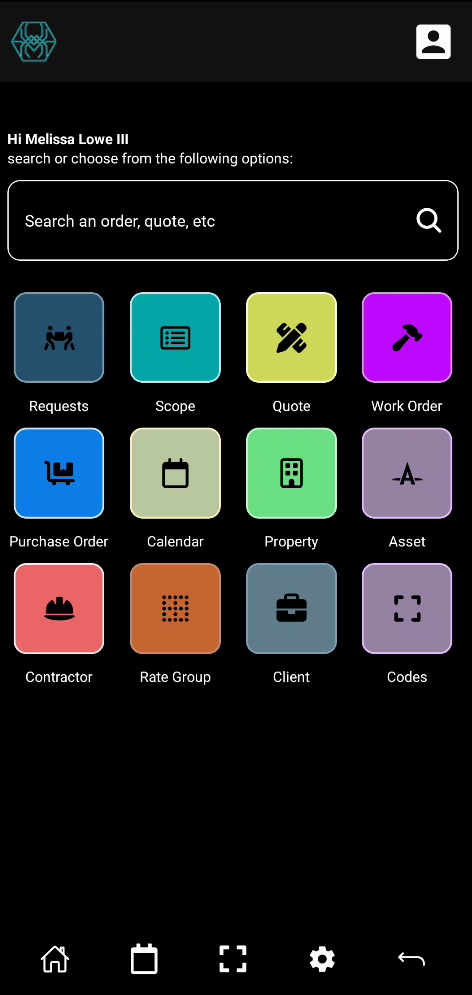
- Location: Home screen / Mobile Dashboard icon
List of Clients
- The default opening page of Client
- This has all listed Clients for your SpyderFlow.
- Like other ‘List of’ pages: can be filtered, searched, sorted in list formats
- Create New Client is available from ‘List of’ screen. Opens into new window to add details by fields.
Client Details
Client details can include:
- Client Name
- Business Registration #
- Address details
- Contact details
- Financial details
- Checkbox to “Allow Custom Payment Dates” can be ticked or unticked
Select Clients and modify
To add, modify or update details:
- Select individual client from ‘List of Clients” screen
- Click view at bottom of each of the sections in details
- Click Done
- Click Save or Save and Exit
Attachments
Attachments can be added to Clients as:
- Take a new photo
- Choose a photo
- Choose a file
When adding attachment fill out or select fields for:
- Title
- Attachment type
- Status
- Can be Viewed by External Users?
Notes
Notes can be added to Clients with:
- Category
- Alert type
- Comments
- Status
- Can be Viewed by External Users?