Open Existing Schedule or Create New Schedule
Go to: Main Menu –> Schedules –> List of Schedules page –> Select and open schedule or Create new schedule
- See link Schedules | WEB | Create New
Add Recurrences
- After Schedule Details are complete and Saved –> Go to Tabs: Recurrences, Items, Assets
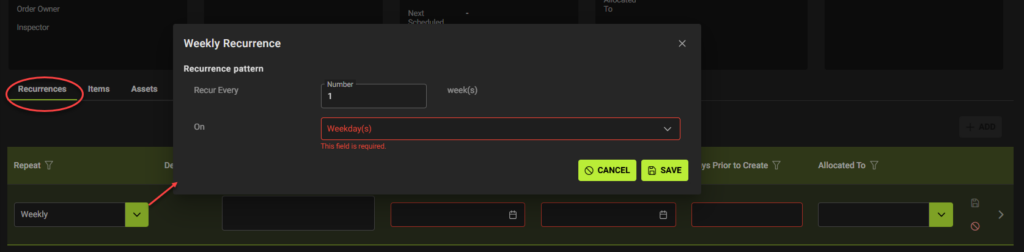
Recurrences Tab
- +ADD for how often to Repeat, From Date, To Date , Days Prior to Create, Allocated To (who will do the work).
Items Tab
- +ADD item code, location, Quantity, Comments and Allocated To

Assets Tab
- +ADD – Asset reference, Address, Allocated to, From, To dates, Enabled tick box

Contacts Tab
- +ADD Contact Details
Related, Invoices, Issues Tabs
- When the schedule is activated it will produce work and purchase orders to view on Related tab
- When flowed to invoices – See Invoice tab
- Issues Tab – If an issue occurs this tab will have a red dot next to the tab name. The red dot will remain until the issue is resolved.
Notes and Attachments Tabs
- +Add Notes and or Attachments as required.
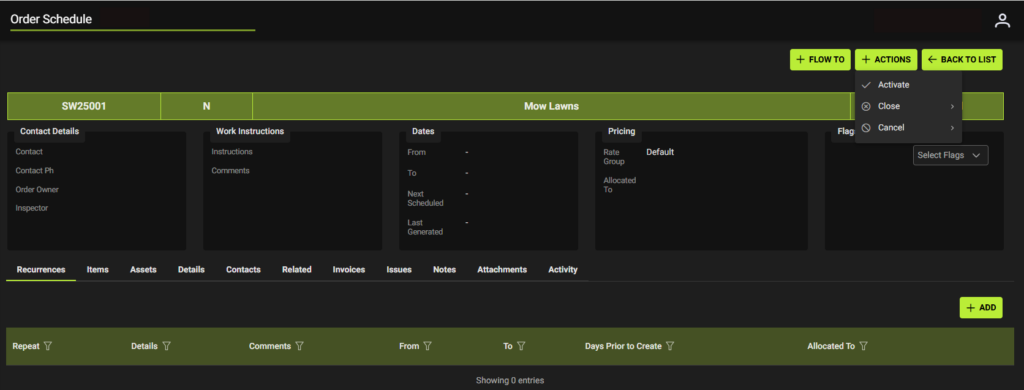
Activate Schedule
To Activate an Order Schedule – Click Actions – Activate
- Or Close
- Or Cancel
- If no longer required
View Schedule inside Asset
Navigate to Main Menu –> Assets and find the asset you added to your new schedule.
- Check the schedule is viewable inside the asset

View Schedule inside Work Orders
Once a schedule is active it will start to produce work orders.
- Work Orders will show inside a Schedule in the Related –> Work History tab
- Schedules can then be seen inside a work order through the Work Order –> Related tab flowed from the Schedule reference.

To modify Activated Schedule
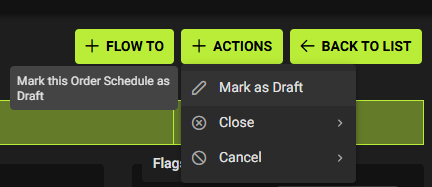
- If need to modify schedule after activated – Change schedule Back to Draft status
- Reactivate when complete.
List of Schedules
- Only the Active schedules will show Next Scheduled date and Time
