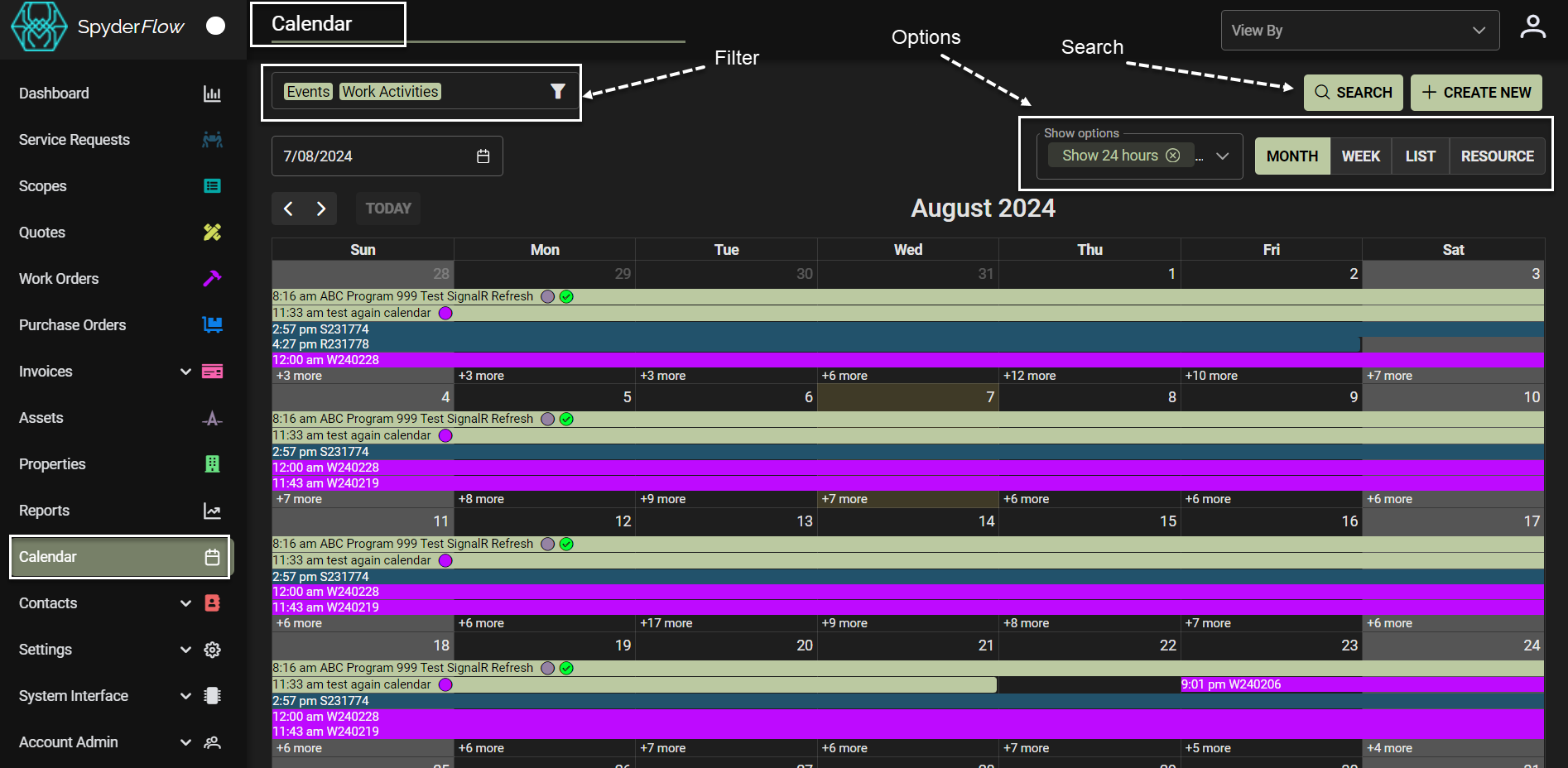
Users have several tools available to customise the Calendar display to best suit their needs:
- Navigation: Traverse through the calendar or go to a specific date.
- View Modes: Switch between various time range views.
- Resource Modes: Choose which resource to view information by.
- Show Options: Show/Hide Business Hours and Entry Types.
- Filter: Focus on important entries.
- Search: Find specific entries.
 Good to know:
- Resource Mode:
- is only available when the Resource is selected as the View Mode.
- will change what information is used to populate the Resource column of the Calendar:
- Event Owner groups and lists entries by the Owner (Event Owner or Work Activity Owner). An Owner only appears in the Resource Column when they have an active entry in the date range view.
- Linked Record groups and lists entries by Reference (Work Activity Reference # or Asset Name). A record only appears in the Resource Column when it has active entry in the date range view.
- Linked Contact groups and lists entries by Contact Name (Client, Contractor, Employee, Supplier). A Contact only appears in the Resource Column when they have an active entry in the date range view.
- Vehicle Asset groups and lists entries by Vehicle-Type Assets by Name (eg. Toyota Camry). All active Vehicle-Type Assets will show in the Resource Column irrespective of having an active entry in the date range view.