Work Order Item (of work) Process
As Items are added in a Work Order (Item Tab) their associated pricing flows to Purchase Orders Tab in the Work Order.
- See link Work Orders | WEB | Add Items
Click Save and Send to send to the allocated employee/contractor.
When work item is complete:
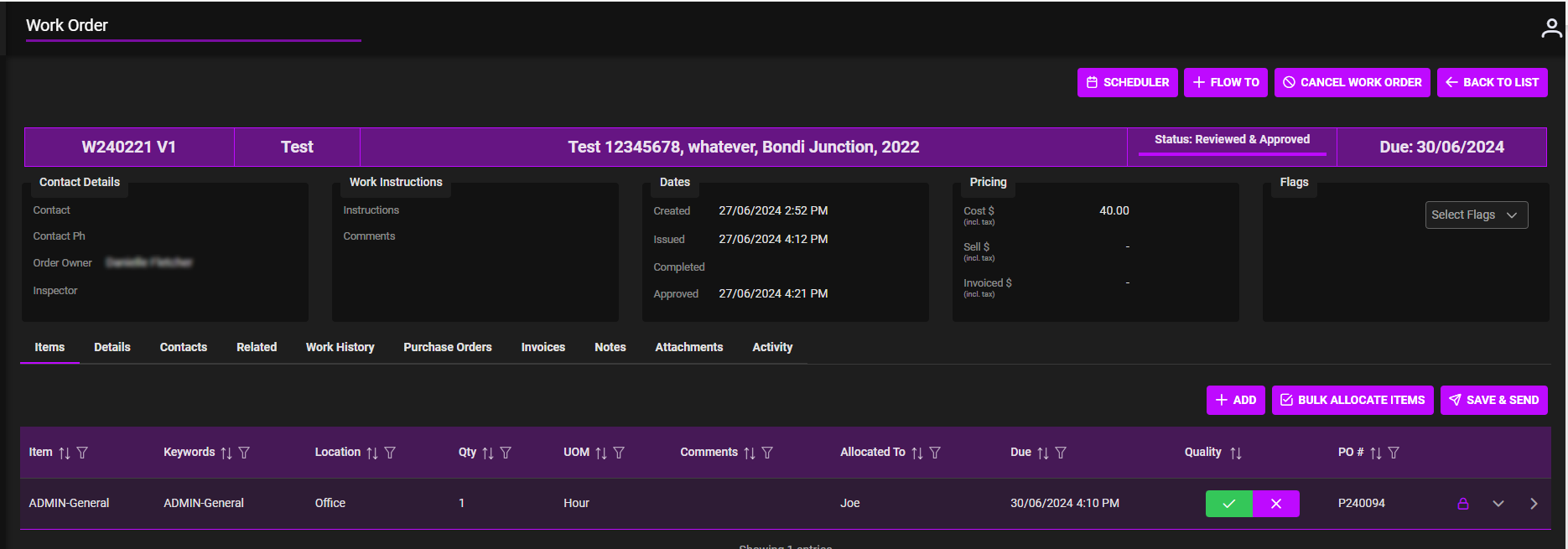
- Open Work Order to the Item and tick for complete. This displays a green tick (work item complete with no issues).
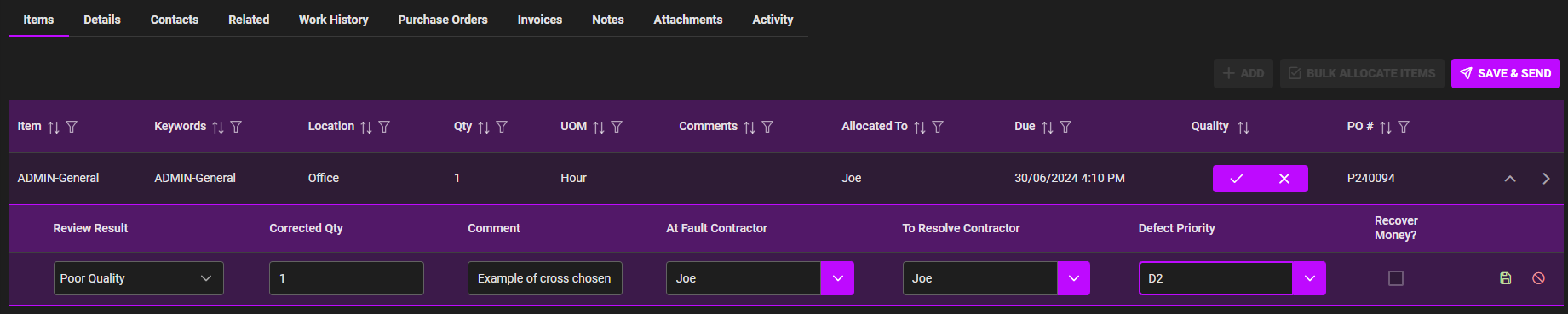
- Or choose to Cross (x) to decline (if work defective).
- If work is defective but then remediated to reach completion tick and the tick now is yellow (shows there was issue but now complete).
- Work history updates on record as you work on it.
- Work Order items can then be flowed to Invoices.
Note:
- Work Order Status will change from Created to Allocated. When complete to Reviewed and Approved. For more information: see link Work Orders | WEB | Status
Example 1: Work Item ticked
Example 2: Work Item Crossed (defective).
- Same person Allocated can be chosen to Resolve the issue. Or work item can be allocated to another employee/contractor to fix issue.