Purchase Orders in SpyderFlow
Located on the Contractor Dashboard > Main Menu > Purchase Orders
Inside an Individual Purchase Order
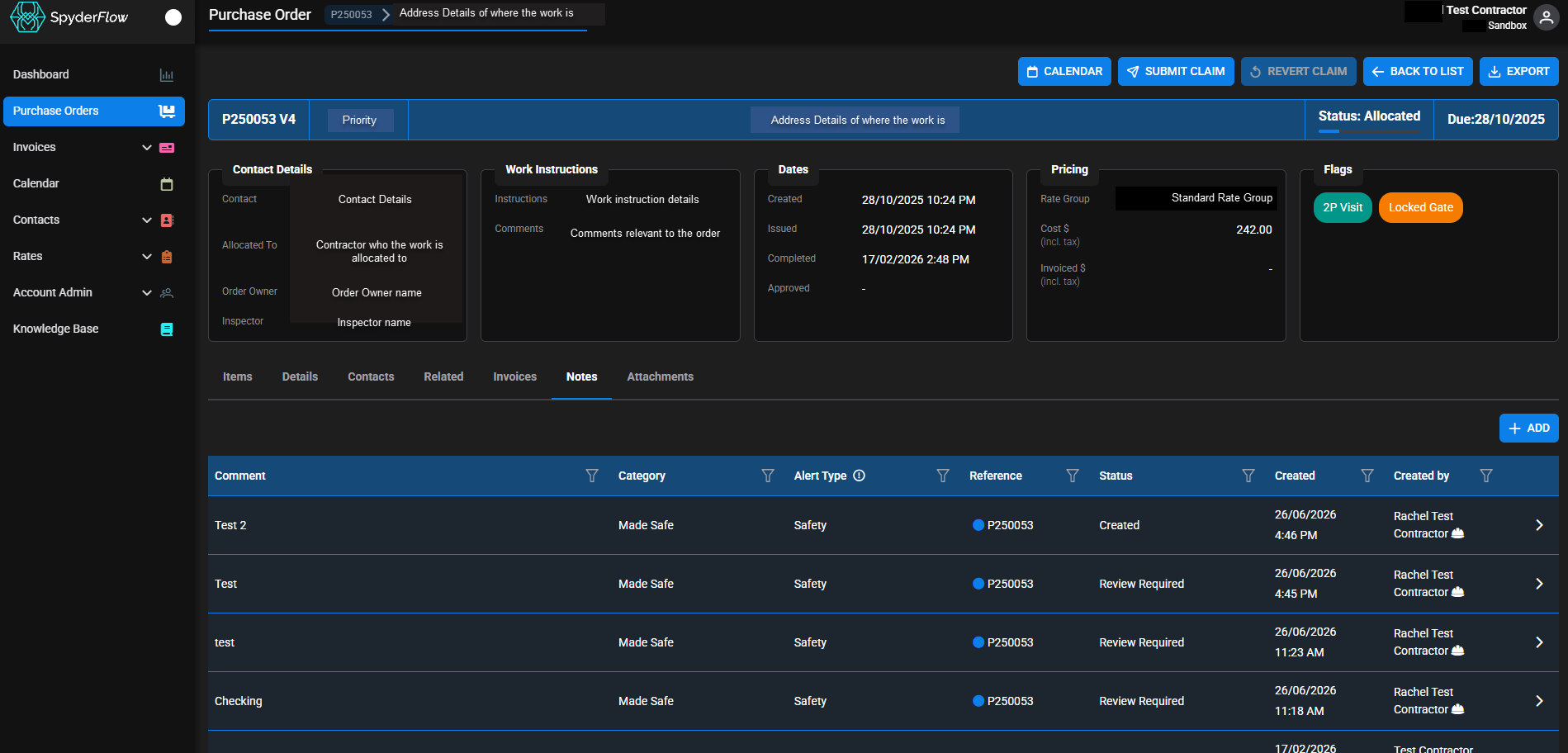
Purchase Order View includes:
- Breadcrumbs (top left) of the path for Purchase Order
- Ability to click Calendar, +Flow to (invoices), Cancel Purchase Order, Back to Parent, Back to List buttons (top mid to right)
- Contact details, Work Instructions, Dates, Pricing, Flags information.
- Tabs: Items, Details, Contacts, Related, Invoices, Notes, Attachments and Activity for the purchase order.
Purchase Order Status
- Purchase Order Created – initial Purchase Order created
- Purchase Order Allocated – contractors/ employees how been notified of the approved work to be completed
- Purchase Order in Progress – the work order has commenced and the work is underway by the identified subcontractors/ employees
- Purchase Order review required – a request for a review of the work order that can happen at any stage to a work order
- Purchase Order Reviewed and Approved – the work is completed, and purchase order is closed
- Purchase Order Paused – the process / work has been put on hold
- Purchase Order Cancelled – the process has ended without any work being completed
Purchase Order Notes Tab
Located: Main Menu –> Purchase Orders –> List of Purchase Orders –> Select Purchase Order –> Notes Tab
This can be general notes, specific notifications to contractors, to and from information sharing in regards to the purchase order to flow also to the work order.
This area can be accessed by the tab area and click across to Notes tab.
To add a Note to Purchase Order
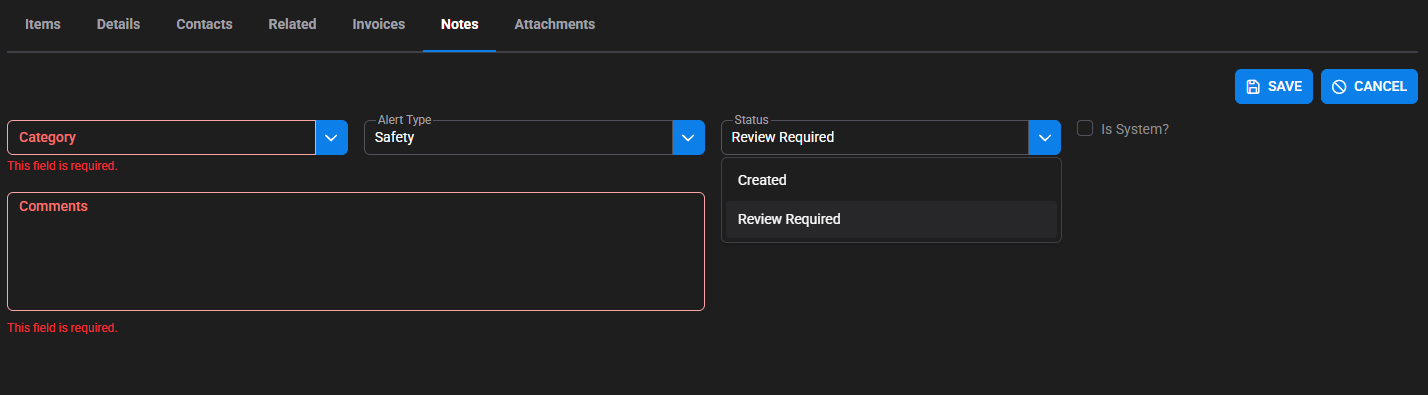
- Navigate to Notes Tab on Purchase Order > Click +ADD
- Fill in Categories, Alerts, Status details
- Note! These drop down options are set up by the organisation you do the contractor work for. Below are some examples and are not limited to only these types.
Category
-
-
- Access issues
- Made Safe
- SOR updates Required
-
Alert Types
-
-
- General
- Safety
-
Status
-
-
- Created is when the note is added.
- If a note is in ‘Review Required’ status a ‘Dot” will appear next to Notes heading.
- Approved is when the note has been reviewed and changed to approved.
-