SpyderTech SpyderTech
  • Home 
  • Solutions
    • SpyderFlow Sign in 
    • SpyderFlow 
    • Professional Services 
    • Industries 
    • NDIS and Aged Care 
    • Technology 
  • Support
    • Knowledge Base 
  • About 
  • Contact Us 

What can we help you with ?

Getting Started

14
  • Getting Started | User Profile | Reset Log In
  • Getting Started | SpyderFlow Overview
  • Getting Started | System Administrator | Subscriber Set Up
  • Getting Started | SpyderFlow Subscription
  • Getting Started | System Administrator | Plan User Access
  • Getting Started | Activate Invitation | First Time Microsoft SSO
  • Getting Started | Activate Invitation (Email Sign in)
  • Getting Started | Sign in (once activated) Options
  • Getting Started | Sign in by Email | Change Your Password
  • Getting Started | WEB | Main Menu and Dashboard
  • Getting Started | WEB | Fields
  • Getting Started | WEB | Set Fields for Workflow Dropdown Options
  • Getting Started | Field Groups
  • Getting Started | Understanding Fields and Field Options

SpyderFlow Mobile App Guide

24
  • Mobile App | About
  • Mobile App | Android | Install SpyderFlow
  • Mobile App | Apple (IOS) | Install SpyderFlow
  • Mobile App | Mobile Interface Refresh
  • Mobile App | Sign in Options
  • Mobile App | First Sign in | Choose Region
  • Mobile App | Home Screen
  • Mobile App | User Profile
  • Mobile App | Change Subscriber
  • Mobile App | Overall Search
  • Mobile App | Camera | Watermark on Photos
  • Mobile App | Requests
  • Mobile App | Quote
  • Mobile App | Scope
  • Mobile App | Work Order
  • Mobile App | Purchase Order
  • Mobile App | Calendar
  • Mobile App | Property
  • Mobile App | Asset
  • Mobile App | Contractor
  • Mobile App | Client
  • Mobile App | Attachments
  • Mobile App | Codes | Scan
  • Mobile App | Codes | Generate

FAQs

7
  • FAQs | Invitation Issues and Resolutions
  • FAQs | Forgotten Username
  • FAQs | Forgot your Password
  • FAQs | Expired Invitation links
  • FAQs | Sensitive Information Protection
  • FAQs | Plan Markers | Assets and Properties
  • FAQs | The Link: Purchase and Work Orders

Troubleshooting Errors

2
  • Troubleshooting Errors | No-Reply SpyderFlow Email Update
  • Troubleshooting Errors | Authorisation | B2C Sign in Errors

The Dashboard

9
  • The Dashboard | WEB | View By
  • The Dashboard | WEB | Asset and Property Widgets
  • The Dashboard | WEB | Appearance
  • The Dashboard | WEB | Widgets
  • The Dashboard | WEB | Widgets Refresh Settings
  • The Dashboard | WEB | Payable Invoices Widget
  • The Dashboard | WEB | Map Widget
  • The Dashboard | WEB | Interface Events Widget
  • The Dashboard | WEB | Receivable Invoices

Service Requests

11
  • Service Requests | WEB | Flow Items
  • Service Requests | WEB | Overview
  • Service Request | WEB | Create New (Subscriber User)
  • Service Request | WEB | Create New (As a Client)
  • Service Requests | WEB | Requests
  • Service Requests | WEB | Details
  • Service Requests | WEB | Contacts
  • Service Requests | WEB | Related
  • Service Requests | WEB | Invoices
  • Service Requests | WEB | Notes
  • Service Request | WEB | Attachments

Scopes

6
  • Scopes | WEB | Overview
  • Scopes | WEB | Status
  • Scopes | WEB | List of Scopes
  • Scopes | WEB | Create New Scope 
  • Scopes | WEB | Add to Scheduler
  • Scopes | WEB | Flow to a Quote

Quotes

9
  • Quotes | Overview
  • Quotes | List of Quotes
  • Quotes | Create New Quote
  • Quotes | WEB | Add Items, Pricing, Contacts
  • Quotes | WEB | Related Tab
  • Quotes | WEB | Attachments and Activity Tabs
  • Quotes | WEB| Statuses
  • Quotes | Bulk Actions
  • Quotes | WEB | Invoices

Work Orders

11
  • Work Orders | WEB | Overview
  • Work Orders | WEB | Status
  • Work Orders | WEB | Create New Work Orders
  • Work Orders | WEB | Item of Work Process
  • Work Orders | WEB | Add Items
  • Work Orders | WEB | List of Work Orders
  • Work Orders | WEB | Variations
  • Work Orders | WEB | Attachable Forms
  • Work Orders | WEB | Flow from a Scope
  • Work Orders | WEB | Flow from a Quote
  • Work Orders | WEB | Flow to Invoices

Purchase Orders

8
  • Purchase Orders | Overview
  • Purchase Orders | WEB| Flow to Invoices
  • Purchase Orders | Inside a Purchase Order
  • Purchase Orders | Status
  • Purchase Orders | Locations
  • Purchase Orders | WEB | List of Purchase Orders
  • Purchase Orders | WEB | Work Order
  • Purchase Orders | WEB | Notes

Schedules

6
  • Schedules | WEB | An Overview
  • Schedules | WEB | Dashboard Widget
  • Schedules | WEB | Create New
  • Schedules | WEB | Add Recurrences and Links
  • Schedules | WEB | Bulk Actions
  • Schedules | WEB | Export

Invoices

9
  • Invoices | Overview and Subscriber User Roles
  • Invoices | Allow Manual Payments
  • Invoices | Send Invoices SpyderFlow
  • Invoices | Add Asset Name
  • Invoices | Edit Client Email
  • Invoices | Financial Settings
  • Invoices | Automate Invoice Creation Orders
  • Invoices | Payable | ‘Paid’ Option Greyed Out
  • Invoices | WEB | Receivables

Assets

15
  • Assets | WEB | Overview
  • Assets | WEB | List of Assets
  • Assets | WEB | Parenting Assets
  • Assets | WEB | Create New
  • Assets | WEB | Details
  • Assets | WEB | Codes
  • Assets | WEB | Location
  • Assets | WEB | Plans
  • Assets | WEB | Plan Markers
  • Assets | Codes | Assign and Scan
  • Assets | WEB | Print QR Codes
  • Assets| WEB | Contacts
  • Assets | WEB | Work History
  • Assets | WEB | Invoices
  • Assets | WEB | Notes

Properties

9
  • Properties | WEB | Overview
  • Properties | WEB | List of Properties
  • Properties | WEB | Create New
  • Properties | WEB | Details
  • Properties | WEB | Plans
  • Properties | WEB | Plan Markers
  • Properties | WEB | Contacts
  • Properties | WEB | Property Assets
  • Properties | WEB | Work History

Calendar

17
  • About The Calendar
  • Web | Calendar Features
  • Web | Filter
  • Web | Search
  • Web | Event Type Configuration
  • Web | Create an Event
  • Web | Edit an Event
  • Web | Delete an Event
  • Web | Work Activities
  • Web | Asset, Property, and Work Activity Calendars
  • Mobile | Calendar Features
  • Mobile | Filter
  • Mobile | Search
  • Mobile | Create an Event
  • Mobile | Edit an Event
  • Mobile | Delete an Event
  • Mobile | Work Activities

Contacts

1
  • Contacts | WEB | Overview

Clients

2
  • Clients | WEB | Overview
  • Clients | Accept Sign Up Invitation

Contractors

10
  • Contractors | WEB | Overview
  • Contractors | WEB | List of Contractors
  • Contractors | Settings | Create a New Contractor Record
  • Contractors | Subscriber | Add Contractor User
  • Contractor | WEB | Access and Work Flows
  • Contractors | WEB | Contractor Approvals Widget
  • Contractors | Approval Process | Contractors and Workers
  • Contractor | WEB | Contractor Workers Overview
  • Contractors | Subscriber WEB | Create New Contractor Worker
  • Contractors | Contractor Administrator | Invite other Users

Employees

7
  • Employees | WEB | User Roles Overview
  • Employees | Web | Information and RLS
  • Employees | WEB | List Of Employees
  • Employees | WEB | Create New User Roles
  • Employees | WEB | Create New Employee
  • Employees | WEB | Link to User Role
  • Employees | WEB | Multiple User Groups

Suppliers

1
  • Suppliers | WEB | Overview

Rates

6
  • Rates | WEB | Rate Groups and Availability
  • Rates | Rate Groups |+Create New
  • Rates | Rate Groups | Items – List of
  • Rates | Rate Groups | New Items and Linked Requests
  • Rates | Requests | List of Requests
  • Rates | Requests | +Create New

Settings

8
  • Settings | WEB | An Overview
  • Settings | WEB | Companies
  • Settings | WEB | Areas
  • Settings | WEB | Projects
  • Settings | WEB | Field Groups, Field Options
  • Settings | WEB | Field Options Overview
  • Settings | Fields | Create New
  • Settings | Fields | Bulk Actions

System Interface

5
  • System Interface | WEB | Incoming Events
  • System Interface | Outgoing Events
  • System Interface | Integration Modules
  • System Interface | Integration Modules | Create New
  • System Interface | Upload Integration Data

User Account Administration

19
  • User Account Administration | My Profile
  • User Account Administration | Role-Based Access Control (RBAC)
  • User Account Administration | Record-Level Security (RLS)
  • User Account Administration | User Roles and Permissions
  • User Account Administration | Main Subscription User
  • User Account Administration | Subscriber User Roles
  • Subscriber User Roles | Invite a New User
  • User Account Administration | Link User Role to Employee
  • User Account Administration | The System Administrator
  • Subscriber Role | Manager
  • Subscriber User | Finance Role
  • Subscriber User | Review and Approve Role
  • Subscriber User | Asset and Scheduler Role
  • Subscriber User | Create and Update Role
  • External Users | Invite to Your SpyderFlow System
  • External Users | Client Standard Role
  • Subscriber and External | Check User Status
  • Subscriber and External Roles | Edit User
  • Subscriber and External | Disable User Account

Profile Subscription Settings

2
  • Subscription Settings | User Access – Multiple subscriptions
  • Subscription Settings | Change Subscription

Subscriber Settings

8
  • Subscriber Settings | Overview and Details Tab
  • Subscriber Settings | Region Tab
  • Subscriber Settings | Workflow Tab
  • Subscriber Settings | Allow Generate QR Codes
  • Subscriber Settings | Communications Tab
  • Subscriber Settings | Financial Tab
  • Subscriber Settings | Security Tab
  • Subscriber Settings | Activity Tab

Customisation | Columns

4
  • Customisation | Columns | WEB | More Options
  • Customisation | Columns | Helpful Information
  • Customisation | Select List | Show or Hide Columns
  • Customisation | List Pages | Resize Columns

Custom Connection | Xero to SpyderFlow

14
  • Custom Connection | Xero | Overview
  • Custom Connection | Xero | Handy Hints
  • Custom Connection | Xero Settings
  • Custom Connection | Xero | Purchase Subscription
  • Custom Connection | Xero | Add a New App
  • Custom Connection | Xero | Select Accounting Scopes
  • Custom Connection | Xero | Send Authorisation Email
  • Custom Connection | Xero | Accept Email
  • Custom Connection | Xero | Client ID and Secret Key
  • Custom Connection | SpyderFlow | Financial settings
  • Custom Connection | Add Webhook URL to Xero
  • Custom Connection | Connected to Xero
  • Custom Connection | Map Tax Codes
  • Custom Connection | Xero to SpyderFlow | Tracking Categories

Multi-Factor Authentication MFA

9
  • Multi-factor Authentication | MFA | Overview
  • Multi-Factor Authentication MFA | WEB vs Mobile App
  • Multi-Factor Authentication MFA | First Time | Sign up by Email
  • Multi-Factor Authentication MFA | Verification code Options
  • Multi-Factor Authentication MFA | Verification Code to Phone
  • Multi-Factor Authentication MFA | Verification Code to Email
  • Multi-Factor Authentication MFA | Add MFA Phone Option to My Profile
  • Multi-Factor Authentication MFA | No MFA Phone Number added
  • Multi-Factor Authentication MFA | System Admin | Add MFA Phone Option to Users

Release Notes

20
  • RELEASE 2026-1
  • RELEASE 2025-4
  • RELEASE 2025-3
  • RELEASE 2025-2
  • RELEASE 2025-1
  • RELEASE 2024-8
  • RELEASE 2024-7
  • RELEASE 2024-6
  • RELEASE 2024-5
  • RELEASE 2024-4
  • RELEASE 2024-3
  • RELEASE 2024-2
  • RELEASE 2024-1
  • RELEASE 2023-5
  • RELEASE 2023-4
  • RELEASE 2023-3
  • RELEASE 2023-2
  • RELEASE 2023-1
  • RELEASE 2022-2
  • RELEASE 2022-1

Reports

2
  • Reports | WEB | Overview
  • Reports | WEB | Assets and Properties

Account Admin

5
  • Account Admin | System Admin or Manager | Overview
  • Account Admin | WEB | User Groups | Security
  • Account Admin | WEB | System Admin | Set User Groups
  • Account Admin | WEB | System Admin | Enable RLS
  • Account Admin | WEB | Employee | Assign to User Group

Companies

6
  • Companies | WEB | Overview
  • Companies | WEB | List of Companies
  • Companies | WEB | +Create New
  • Companies | WEB | Financial tab
  • Companies | WEB | Related Tab
  • Companies | WEB | Activity Tab

SpyderFlow Manuals

5
  • Contractors | Invite your Workers as Users in SpyderFlow
  • SpyderFlow Manuals | Watermark on Photos
  • SpyderFlow | How to Guide for Mobile App
  • SpyderFlow | Contractor Training Summary
  • SpyderFlow | Contractor Manual

Data Exports

1
  • Data Exports | WEB | Overview

Themes

1
  • Themes | WEB | Light and Dark

Flags

1
  • Flags | WEB | Overview
  • Home
  • SpyderFlow Knowledge Base
  • Contractors
  • Contractors | Contractor Administrator | Invite other Users
View Categories

Contractors | Contractor Administrator | Invite other Users

To invite other users in your company you first need to decide their level of access to your SpyderFlow.

There are two level types below:

  1. Contractor Administrator: This gives full access to your company information in SpyderFlow.

View of:

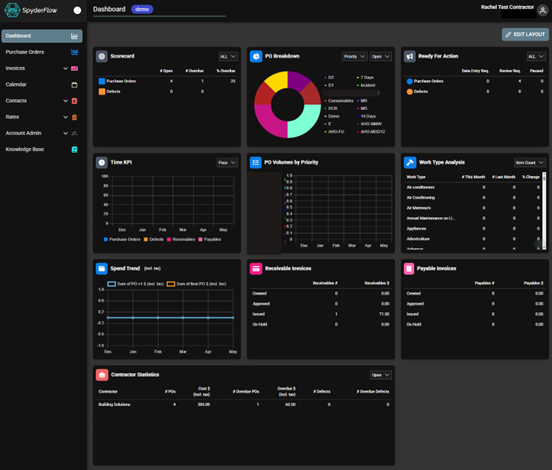
      • Dashboard and widgets
      • Purchase Orders – including prices, can add notes and attachments.
      • Invoices – Receivables and Payables
      • Calendar – Can add and filter to Events and Work Activities
      • Contacts – Contractor company information and contractor workers information/
      • Rates – including pricing.
      • Account Admin – including ability to invite your workers to be users.
      • Knowledge Base


2. Contractor User: Limited information of your company information. Cannot see pricing or add other users. Cannot access company invoices, company details or other workers information.

View of:

      • Dashboard and widgets
      • Purchase Orders – no prices, can add notes and attachments.
      • Calendar – Can add and filter to Events and Work Activities
      • Rates – no pricing
      • Knowledge Base


Notes:

  • Both Contractor Administrators and Contractor Users will see all Purchase Orders for your company and cannot assign per worker at moment.
  • Widgets are less if Administrator to User in company. Click Edit layout to move, remove or re add widgets to your SpyderFlow.
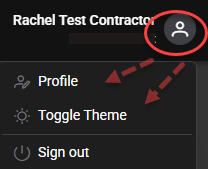
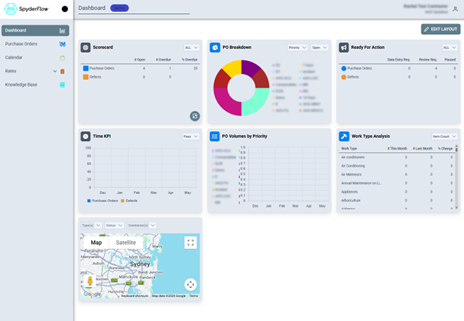
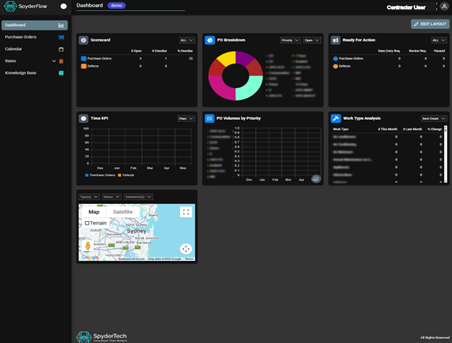
  • Light and dark themes are now available for all SpyderFlow users in Web version. Change through profile icon and select “Toggle Theme”. See screenshots next page.
  • Profile information can also be viewed and edited through Profile icon (top right). Reset log in button is also now available to all users. If originally set up to email you can reset to log in another way.


Light theme

  • Contractor User screenshot as an example.
  • Contractor Administrator has more menu items, permissions and widgets but same colour theme.


Dark Theme

  • Contractor User screenshot as an example.
  • Contractor Administrator has more menu items, permissions and widgets but same colour theme.


Process to Add your Workers as Users to Sign into SpyderFlow

Required: Contractor Administrator – Invite other users to SpyderFlow.

  • Contractor Users cannot invite other users. Must be the Contractor Administrator account.
  • Note your contractor company can have more then 1 x Contractor Administrator User account.


Steps to Invite your Users to SpyderFlow:
  1. Sign into SpyderFlow with your Administrator account. This is the full access user for your contractor company.
  2. Main Menu à Go to Account Admin
  3. Select External Users
  4. Click +INVITE.
  5. Fill in new user:
    • Email address
    • Display Name
    • Type: Select Contractor from drop down.
    • User Role: Select Contractor Administrator or Contractor User from drop down depending on the access you want the user to have to your company information.
    • Phone: This is an optional field and is more a contact phone not a MFA phone number.
  6. Click Invite (top right)
  7. Invitation will be sent to your company member to sign up to SpyderFlow.


Note: Once invited please let your subscriber (that you are contracted to) know  you have invited one of your workers for SpyderFlow approval of the user account or the contractor record will be in draft until approved and status updated to active.


Handy Hint!

You may want to direct them to sign up by email, google, apple, Microsoft (depending on your company requirements.

Or they may just choose which way is handy for them to sign in with.


MFA code will by default be to the user email address when user’s sign into SpyderFlow.

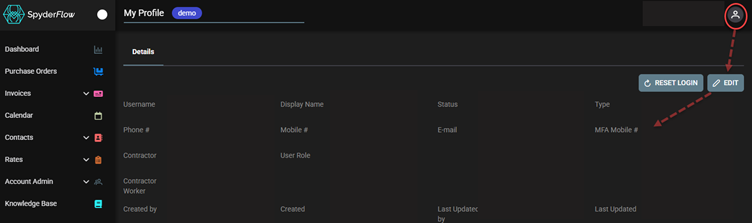
  • If need to add MFA to go to the user mobile number go to the Profile icon (when signed in) and add user mobile phone number to the MFA Phone Field. See below….


Add MFA to Mobile Phone Number

Once signed into SpyderFlow: Go to Profile Icon then Select Profile 

My Profile –> Details Page –> Click EDIT

MFA Mobile # field: fill in using country code format with mobile number.

  • For example: In Australia will be +61 then phone number format.


Updated on 13 May 26
Table of Contents
  • Process to Add your Workers as Users to Sign into SpyderFlow
    • Steps to Invite your Users to SpyderFlow:
    • Add MFA to Mobile Phone Number

Archives

No archives to show.

Categories

  • No categories

SpyderTech © 2026 · GDPR and Privacy Policy