SpyderFlow supports Single Sign-On (SSO) options for Microsoft accounts.
This method of sign in allows you as a user to authenticate with a single set of credentials across multiple applications.
You may already use this with Microsoft Outlook, Teams and Office software.
By using this method with SpyderFlow, not only can a user save time but also strengthen security by using organisation email/passwords set on their computer.
How to Sign In Using Microsoft SSO:
- User receives activation email to sign up to SpyderFlow..
- If the window to sign in appears with option for typing email/password then ignore.
- Do not type email and password!!
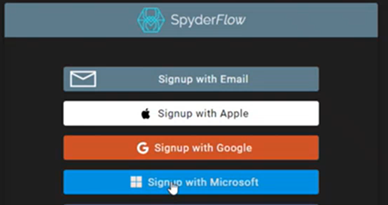
- On the login screen, select:
- Sign up with Microsoft. This will use your Microsoft credentials for your computer and other applications you use daily.
- If you are already signed into SSO on your device, SpyderFlow will take you straight to your Dashboard, saving time.
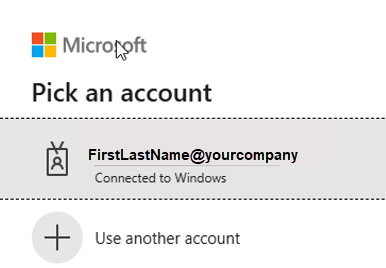
- If not, follow the on-screen prompts to authenticate through your Microsoft email
- Sign up with Microsoft. This will use your Microsoft credentials for your computer and other applications you use daily.
- Select/Type Microsoft email address
- Enter Password. This may be prefilled if you are already signed into your computer with SSO.
- After ‘Enter Password’ window
- System returns back to SpyderFlow with a prompt window:
- Email which is received from a social provider – check this is correct
- Click Create
- System returns back to SpyderFlow with a prompt window:
- Once authenticated, you will be redirected to the SpyderFlow Dashboard.
Tip! If prompted for permissions, click Allow to grant access for authentication.
Note! If signing up with Microsoft SSO this needs to be signed up as the first time. You cannot choose sign up by email and change at a later date.
Future Sign in with your Microsoft Account
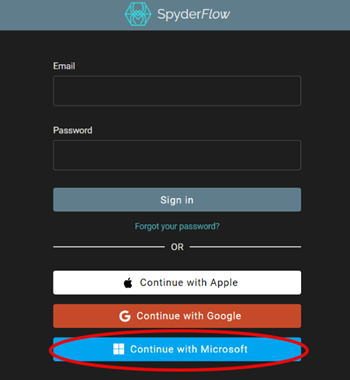
- Once signed up with a Microsoft Account, always select the ‘Continue with Microsoft’ option see.
- For the SpyderFlow app if not already installed, install the app from the App Store for iOS devices or Google Play for Android devices.
- Once installed tap ‘Continue with Microsoft’ option on the Login screen on the app to Sign in to SpyderFlow.
Quick Tips! Cannot sign in Microsoft SSO
If you have not chosen to sign up with SSO the first time you cannot use this option for subsequent sign in with this process.
If sign in by email chosen please refer to Getting Started | Sign in (once activated) Options
Issue: Sign in window loops in Microsoft SSO prompts
If you cannot sign in with Microsoft SSO and the sign in window loops around.
- This may occur when you enter password or even when enter authentication code
- Clear your browser cache and retry.
To Clear Cache In Chrome
- On your computer, open Chrome.
- At the top right click the three dots
- Click History
- Pop up window –> Click History again
Select Delete Browsing Data –> Advanced Tab
- Time range – choose All time
- At minimum – select Cookies and other site data
- Also select Cached images and files
Then click Delete data
For other browsers see related links at bottom of this page
Related links
Clearing Browser Caches
Google – https://support.google.com/accounts/answer/32050
Apple iPad/iPhone – https://support.apple.com/en-au/guide/safari/sfri47acf5d6/mac
IMac –https://support.apple.com/en-us/105082
Microsoft Edge – https://support.microsoft.com/en-us/microsoft-edge/view-and-delete-browser-history-in-microsoft-edge-00cf7943-a9e1-975a-a33d-ac10ce454ca4
Firefox – https://support.mozilla.org/en-US/kb/how-clear-firefox-cache