Batch invoicing allows multiple invoices to be combined into a single Batch Invoice that can be sent to a customer for payment.
- Prerequisites: Only Approved or Issued invoices can be batched.
- Matching Constraints: Invoices must share identical Contact, Company, and Client information.
- Tax amounts (inclusive/exclusive) are preserved from the original invoices and are not recalculated at the line-item level.
- An invoice can belong to only one batch, but batch invoices can themselves be nested inside another batch.
- Read-Only Status: Once a batch is approved, all included invoices are locked and cannot be individually changed, credit noted, or placed on hold.
- Actions: Changing the status of the parent batch (On Hold, or Revert) applies that exact same status to all included invoices.
Payments & Reversals
-
- Marking a batch as Paid automatically marks all underlying invoices as fully paid, showing a reference to payment come from the batch invoice.
- Voiding or credit noting a batch applies to the entire total and releases the original individual invoices for normal use. Credit notes apply to the whole batch invoice.
Create a Batch Invoice
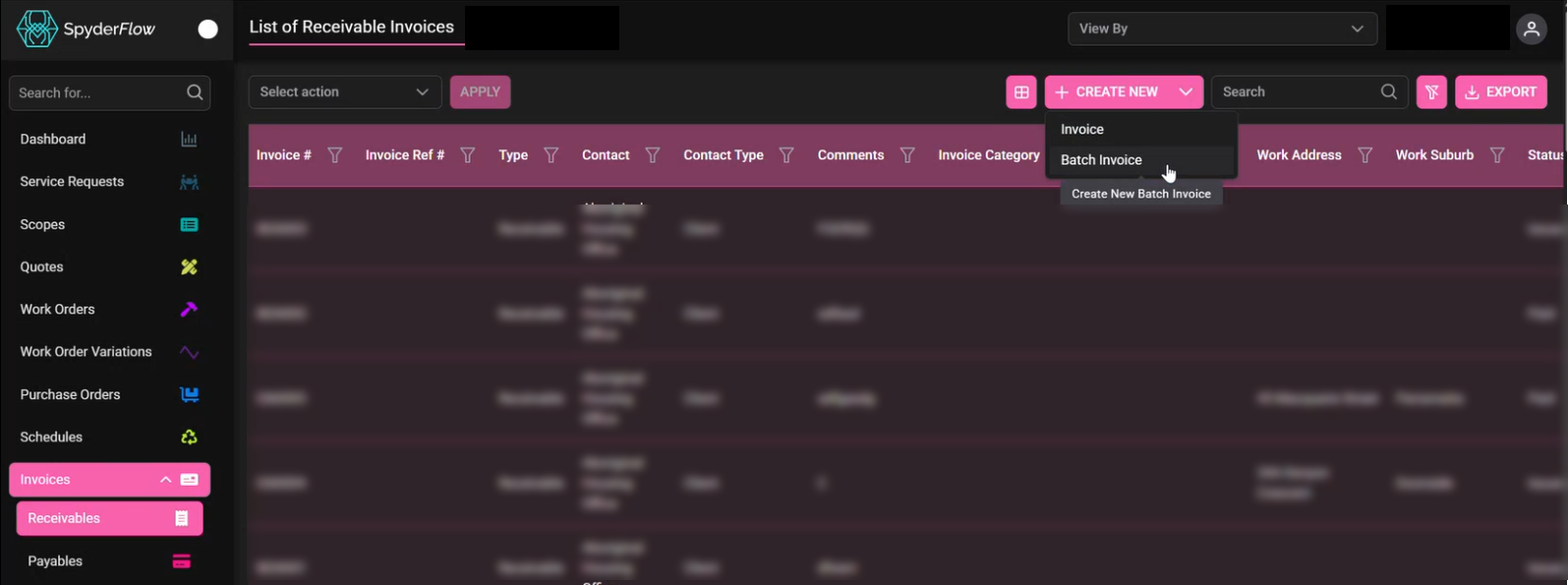
- Navigate to the invoice you want to create in either Invoices > Receivables or Invoices > Payables
- Click the drop down on the +Create New and choose Batch Invoice
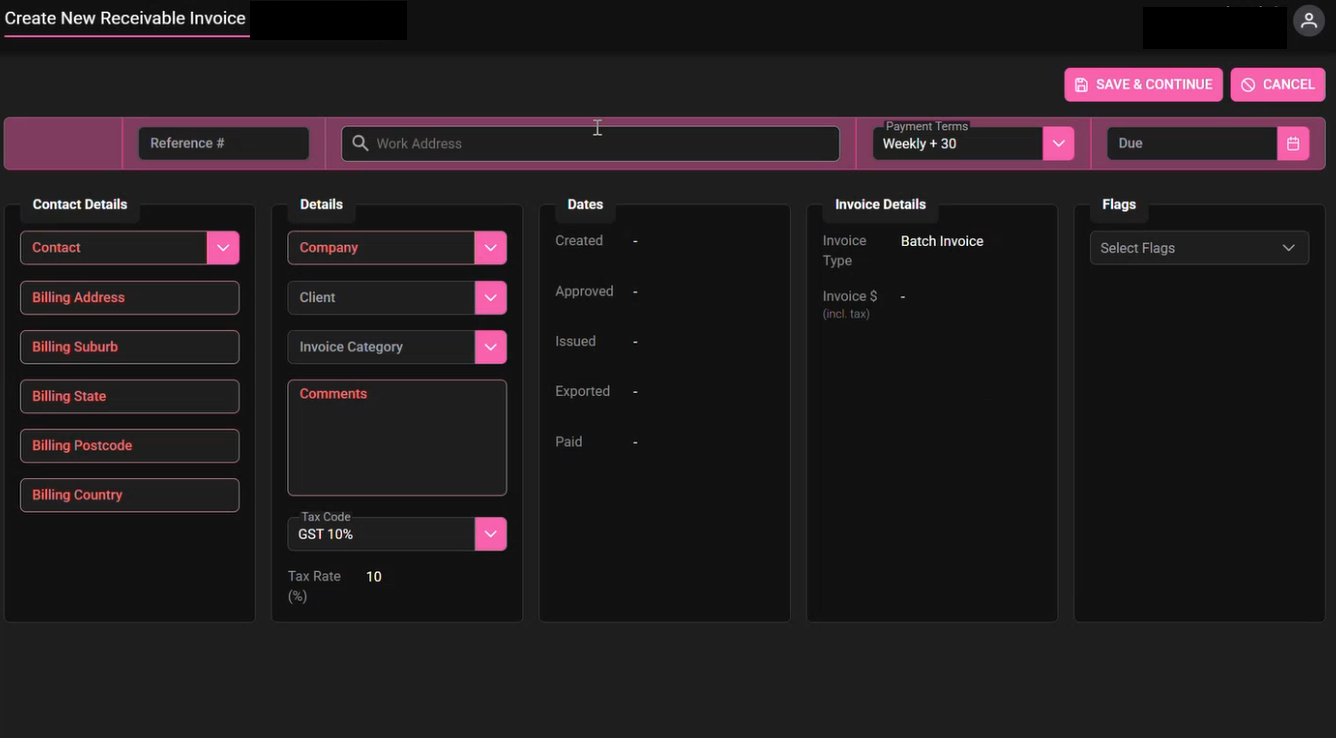
- Create New Batch Invoice is available to complete mandatory and then optional fields as required.
- Note: Choice of invoices is by Client and Company details. Comments should be relevant to the Batch invoice
- Work Address is optional
- Click Save & Continue after filling out fields
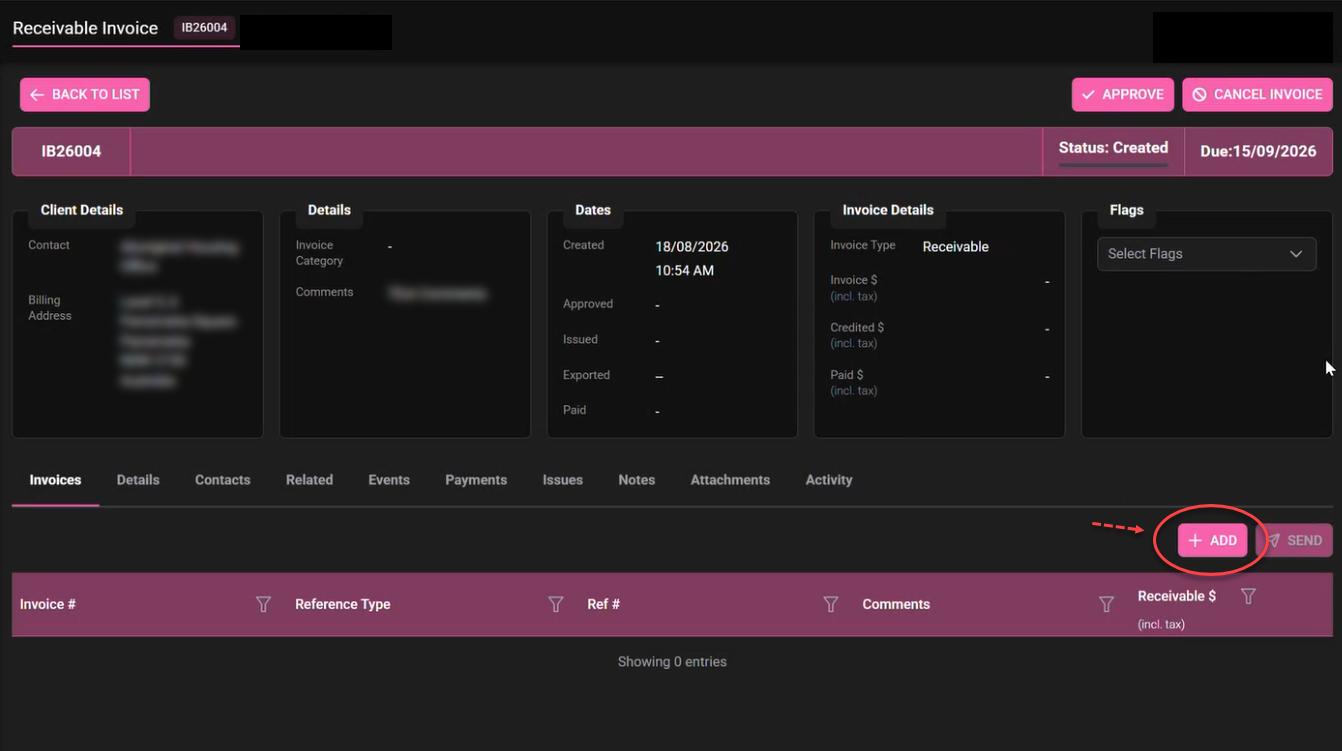
- Batch invoice is created, ready to add Invoices through Invoices Tab > +ADD
- Add Invoices to Batch Invoice
- Click +Add Invoices
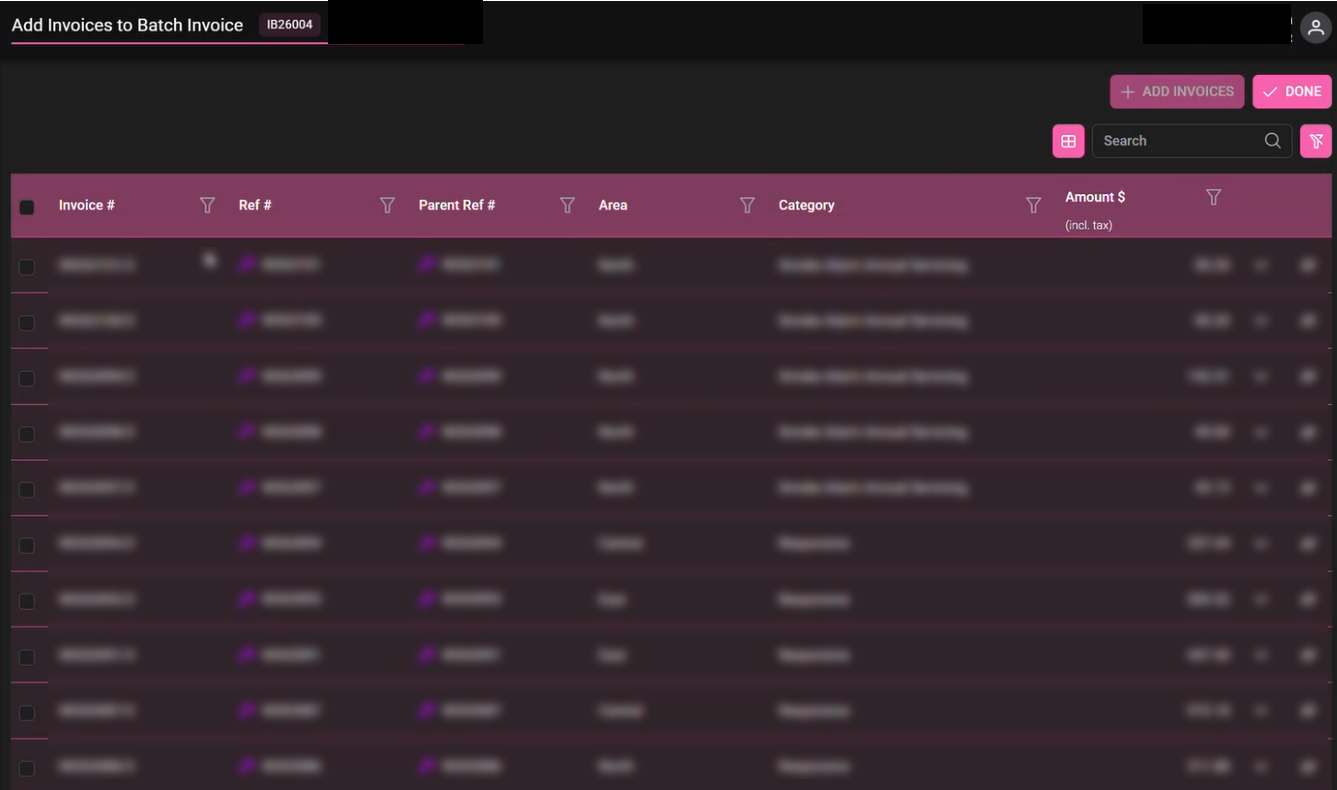
- Select invoices to add to batch invoice (choose individually or choose all that come as available)
- Search and Filters can be used to get invoices required.
- Customise columns as needed.
- Click Done when added invoices
- Return to Batch invoice with invoices added as selected.
- Repeat to +ADD more invoices if need
- Review the Batch Invoice
- When ready click Approve
- Once a batch is approved, all included invoices are locked and cannot be individually changed, credit noted, or placed on hold.
- Issue or Manage the Invoices
- You must now manage the invoices from the parent batch level. Any action you take here automatically applies to all nested invoices underneath including if paid, credit noted or voided (as explained top of page under Payments and Reversals)
Further information – See RELEASE 2026-5